Desktop Computer Monitor Guide 2026: How to Choose the Right Display


ℹ️
Disclosure: This post contains affiliate links. We may earn a commission at no extra cost to you. We only recommend products we’ve tested and trust.

Buyer’s Guide

Shamim Sarker
By Shamim Sarker
Quick Answer

A desktop computer monitor is a standalone display that connects to a desktop PC to show visual output. When choosing one, prioritize panel type (IPS for most users), resolution (1440p is the current sweet spot), screen size (27 inches fits most desks), and refresh rate (higher for gaming, standard 60Hz for office work).

Expert Summary

  • A 27-inch IPS monitor at 1440p resolution is the right default choice for most desktop users in 2026.
  • 60Hz is fine for office work, but gamers should target at least 120–144Hz, with competitive players going 240Hz+.
  • DisplayPort is the preferred connection for desktop gaming PCs; USB-C is best for laptops needing single-cable charging and video.
  • Monitor prices range from $100–$180 for budget office panels up to $700–$1,500+ for premium OLED gaming/creative displays.
  • OLED panels deliver the best contrast and response times but carry a small burn-in risk with static on-screen content.

What Is a Desktop Computer Monitor?

A desktop computer monitor is a standalone display device connected to a desktop PC (or laptop) that renders the visual output from your graphics card. Unlike a laptop’s built-in screen, a desktop monitor is a separate purchase, which means you get to choose exactly the size, resolution, panel technology, and features that fit how you actually work or play — instead of settling for whatever came bundled with your machine.

People will spend $300 on a graphics card upgrade and then run it through a decade-old 1080p panel that can’t even show off the extra performance. The monitor is the final translation layer between your hardware and your eyes — get it wrong, and everything downstream feels compromised.

Modern desktop monitors in 2026 span an enormous range: compact 21.5-inch budget office displays, 27-inch all-rounders that dominate the market, ultra-wide 34-inch curved panels for immersive gaming or multitasking, and premium 32-inch 4K or even 6K creative displays for photo and video work. Prices range from under $150 for entry-level office monitors to well over $1,000 for high-refresh OLED gaming panels or color-accurate professional displays. If you’re still deciding between a desktop setup and a laptop in the first place, our desktop vs. laptop comparison breaks down which makes more sense for your workflow.

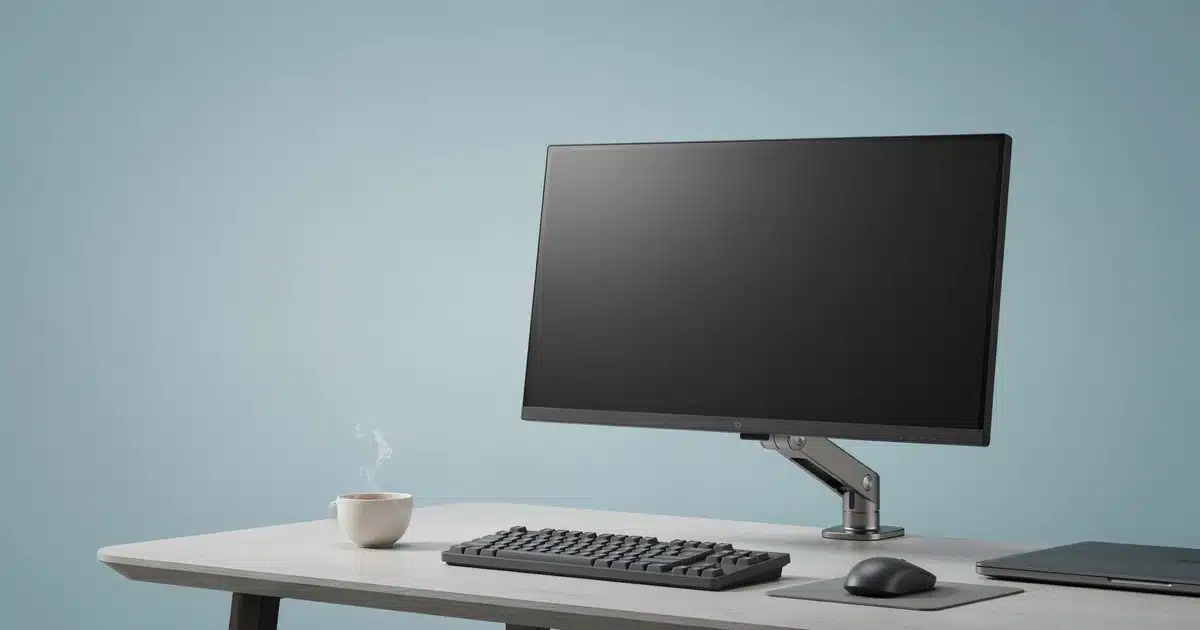
A 27-inch IPS monitor on a height-adjustable arm — the default recommendation for most desktop setups in 2026.

What to Look For in a Desktop Monitor

Panel Types Explained: IPS vs. VA vs. TN vs. OLED

The panel type determines how your monitor renders color, contrast, and motion — and it’s the specification that affects your day-to-day experience more than almost anything else. The same trade-offs show up on laptop screens too; our OLED vs. IPS display comparison covers the underlying technology in more depth if you want the full picture.

IPS (In-Plane Switching)
The market leader for good reason. IPS panels deliver accurate colors and wide viewing angles, making them the safe, all-purpose choice for office work, creative work, and general gaming.

VA (Vertical Alignment)
Trades a bit of color accuracy and viewing angle for significantly deeper blacks and higher contrast. Worth considering for dark, cinematic content, though colors can shift slightly when viewed off-angle.

TN (Twisted Nematic)
The oldest and cheapest technology. Fast response times but washed-out colors and narrow viewing angles. With IPS now hitting high refresh rates at competitive prices, there’s little reason to buy TN in 2026 unless budget is the only concern.

OLED
The premium tier. Each pixel emits its own light, producing true blacks, extreme contrast, and near-instant response times. Looks spectacular for gaming and movies, but costs more and carries a small burn-in risk with static on-screen elements.

Panel Type Comparison
Panel Type Color Accuracy Viewing Angles Contrast Best For
IPS Excellent Wide Good Office, creative work, general gaming
VA Good Moderate Excellent Movies, dark-room use, general use
TN Fair Narrow Fair Ultra-budget builds only
OLED Excellent Wide Outstanding Gaming, movies, premium setups

IPS vs. VA vs. TN vs. OLED: how each panel type renders color and contrast side by side.

Resolution: How Many Pixels Do You Actually Need?

Resolution determines how sharp and detailed your image looks, and how much content you can comfortably fit on screen at once. If the numbers themselves are confusing, our FHD vs. 2K vs. 4K breakdown explains what each resolution actually looks like in practice.

  • 1080p (1920×1080, Full HD): Still the most common resolution overall, and perfectly fine for basic office work, web browsing, and budget gaming builds. On screens larger than 24 inches, text and icons can start to look soft.
  • 1440p (2560×1440, QHD): The current sweet spot for most desktop users. Noticeably sharper than 1080p without demanding the graphics horsepower that 4K requires, and pairs beautifully with 27-inch panels.
  • 4K (3840×2160, UHD): Ideal for photo/video editing, spreadsheet-heavy multitasking, and anyone who wants maximum screen real estate. You’ll want a capable graphics card to drive games at 4K smoothly.
  • Beyond 4K (5K/6K): A niche but growing category aimed at creative professionals who need extreme pixel density for print or high-end photo work.
A simple rule: if your primary use is office work and web browsing, 1080p or 1440p is enough. If you’re gaming and want visual headroom for the next few years, go 1440p. If you’re editing photos, video, or juggling a dozen windows at once, 4K earns its price premium.
What about HDR? A monitor with true HDR support (look for DisplayHDR 600 certification or higher, not just an “HDR compatible” sticker) shows brighter highlights and deeper shadow detail. Budget “HDR400” panels rarely have the peak brightness or local dimming zones to make a real difference — treat HDR as a nice-to-have on a mid-range or premium monitor rather than a must-have on a budget one.

Screen Size and Viewing Distance

Bigger isn’t automatically better — size needs to match both your desk space and your resolution. A 4K image on a small screen looks incredibly sharp but makes text tiny; the same resolution on a much larger screen looks proportionally normal but may require sitting further back.

  • 21.5–24 inches: Compact desks, dual-monitor office setups, budget builds.
  • 27 inches: The current default recommendation for most people — enough real estate for productivity and gaming without overwhelming a standard desk.
  • 32 inches: Great for 4K content, creative work, and anyone who wants a single large canvas instead of two monitors.
  • 34-inch+ ultrawide: Ideal for multitasking, immersive gaming, and video editing timelines, though it needs real desk depth to sit at a comfortable distance.

As a general guideline, sit roughly an arm’s length away from a 27-inch monitor, and increase that distance as screen size grows. If you’re constantly leaning forward to read text, the monitor is either too small for the resolution or positioned too far away.

Recommended viewing distance scales with screen size — sit further back as you size up.

Refresh Rate and Response Time

Refresh rate measures how many times per second the image updates, expressed in Hertz (Hz). Response time measures how quickly a pixel can change color, expressed in milliseconds (ms).

For office work, web browsing, and general productivity, standard 60Hz is completely sufficient. For gaming, though, refresh rate becomes one of the most impactful specs you can buy. Moving from 60Hz to 120Hz or 144Hz produces a dramatically smoother, more responsive feel. Competitive gamers often push further to 240Hz or beyond.

Response time matters most for fast motion — a slower panel can show ghosting or blur trailing behind moving objects. Most modern IPS gaming monitors have closed the gap here.

If you’re using NVIDIA or AMD graphics hardware, look for adaptive sync support (G-SYNC or FreeSync), which synchronizes the monitor’s refresh rate with your GPU’s output to eliminate screen tearing and stuttering.

Ports and Connectivity: Matching Your Monitor to Your PC

Before buying, check which ports your computer actually has — this single step prevents most monitor return headaches.

  • HDMI: Universal and widely supported across desktops, laptops, and consoles. Older HDMI versions cap resolution and refresh rate lower than newer standards.
  • DisplayPort: The preferred connection for most desktop gaming PCs, generally supporting higher resolutions and refresh rates than HDMI at a given price point.
  • USB-C: Increasingly common, especially useful for laptop users since a single cable can carry video, data, and power delivery simultaneously. Our laptop ports guide breaks down how USB-C, Thunderbolt, and HDMI actually differ if you want the full picture.

If you’re connecting a modern desktop gaming PC, prioritize DisplayPort. If you’re docking a laptop, prioritize USB-C. If you’re unsure, HDMI remains the safest universal fallback.

Pairing a monitor with a Mac? Most modern MacBooks output video over USB-C/Thunderbolt, so a USB-C monitor lets you connect, charge, and (on many models) run peripherals through a single cable — no dongle required. Check the monitor’s USB-C power delivery rating (65W or higher covers most MacBook Air and 14-inch MacBook Pro models) and confirm the monitor supports at least DisplayPort Alt Mode before buying.

Ergonomics and Eye Comfort

This is the part most buying guides skip, and it’s the part that determines whether your new monitor still feels good after eight hours.

Stand adjustability matters more than people expect. Look for height adjustment, tilt, and ideally swivel or pivot. If a monitor’s stand is limited, a VESA-compatible monitor arm is a worthwhile add-on — browse our peripherals and accessories picks for options that fit different desk setups.

Proper eye-level height and a VESA arm do more for long-session comfort than most spec-sheet numbers.

💡

Expert Tip

Matte vs. glossy finish also affects comfort — a matte anti-glare coating reduces reflections from windows and overhead lighting, which matters a lot in bright rooms or daytime home offices. Some cheaper panels also use PWM dimming, which can cause imperceptible flicker that contributes to eye fatigue. Look for “flicker-free” specs and a built-in low blue light mode if you spend long hours at the screen.

The difference between a well-adjusted, flicker-free, matte 27-inch IPS monitor and a glossy, fixed-stand budget panel is night and day by the end of a workday — even though both might list similar core specs on paper.

Which Monitor Fits Your Use Case?

Use Case Resolution Size Refresh Rate Priority Feature
General Office / Browsing 1080p–1440p 24–27″ 60Hz Matte finish, adjustable stand
Gaming (Mainstream) 1440p 27″ 144Hz+ See gaming monitor picks
Gaming (Competitive) 1080p–1440p 24–27″ 240Hz+ Response time, refresh rate
Creative / Photo & Video 4K 27–32″ 60Hz Color accuracy, USB-C
Multitasking / Coding 1440p Ultrawide 34″+ 60–100Hz See coding monitor picks
Budget / Secondary Display 1080p 21.5–24″ 60Hz Value, basic ergonomics
Running two monitors instead of one big screen? A dual-monitor setup is often better than a single ultrawide for people who work in fixed, separate apps side by side, since window snapping is simpler and you avoid stretching a single taskbar across a curve. If you’re setting this up alongside a new build, our PC building guide covers the GPU-output and cabling considerations for driving multiple displays.

Price Tiers & What You Get (2026)

Category Price Range Panel Type Best For Trade-off
Budget Office $100–$180 TN/IPS Basic productivity Limited color accuracy, few ports
Mainstream All-Rounder $200–$350 IPS Office + light gaming Standard refresh rate
Mid-Range Gaming $300–$550 IPS/VA Gaming, esports Lower resolution than premium tier
Creative Workstation $450–$900 IPS 4K Photo/video editing Higher cost, needs strong GPU
Premium Gaming/OLED $700–$1,500+ OLED High-end gaming, movies Burn-in risk, premium pricing

Pros and Cons of Upgrading to a Dedicated Monitor

Pros

  • Significantly more screen real estate than a laptop display
  • Better ergonomics — position the screen at proper eye level
  • Sharper, larger image improves productivity and reduces eye strain
  • Enables true dual-monitor or ultrawide multitasking setups
  • Unlocks higher refresh rates and better color accuracy for gaming and creative work

Cons

  • Added desk space requirement
  • Additional cost on top of your existing PC or laptop
  • Cable management and port compatibility can be a hassle
  • Higher-end panels (4K, OLED, high refresh) require a capable GPU to fully utilize
  • Some premium features (like OLED) carry burn-in risk with static content

Expert Verdict

If you only take one piece of advice from this guide: a 27-inch IPS monitor at 1440p resolution is the right default choice for the overwhelming majority of desktop users in 2026. It balances sharpness, color accuracy, desk footprint, and price better than almost any other combination. From there, adjust based on your actual use case — bump the refresh rate up if you game seriously, step up to 4K if your work depends on visual precision, or go ultrawide if multitasking is your daily reality. Don’t chase spec-sheet numbers you won’t actually use; a competitive-gaming refresh rate does nothing for spreadsheet work, and a creative-grade 4K panel is wasted on someone who mostly browses the web. Match the monitor to how you actually spend your day, not to the flashiest number in the listing.

Who Is This Guide For?

🖥️

Building or Upgrading a Setup

Perfect Fit

You don’t know where to start with monitor specs and want a clear default recommendation (27″ IPS, 1440p) plus how to deviate based on your use case.

🎮

Comparing Specs Before Buying

Good Fit

You’ve upgraded your GPU or CPU but haven’t touched your display in years, and want to compare panel types, resolutions, or refresh rates before spending money.

💻

Laptop-Only Shoppers

Not Ideal

You’re shopping specifically for a laptop’s built-in display, not an external monitor — this guide covers standalone monitors only. See our laptop buying guide instead.

🛒

Ready to Buy Specific Products

Not Ideal

You already know your specs and just want product picks — jump to our gaming monitor or coding monitor reviews instead.

Where to Go Next

🎯

Gaming Picks
See our hands-on Best Gaming Monitors for 2026 if you’re chasing 144Hz+ refresh rates.

⌨️

Productivity & Coding Picks
See our Best Monitors for Programming for ultrawide multitasking setups.

🔌

USB-C & Mac Picks
See our Best USB-C Monitors for single-cable charging and video setups.

Key Takeaways

  • Start with panel type and resolution, then size the screen to your desk and use case.
  • 27-inch IPS at 1440p is the safest default for most people.
  • Don’t overlook ergonomics — stand adjustability and flicker-free specs matter more than most spec sheets suggest.

Choosing a desktop computer monitor doesn’t need to be complicated once you know which specs actually affect your daily experience. Whatever budget or use case you’re working with, the framework above should point you to the right category fast.

Ready to Find Your Next Monitor?
Check out our hands-on picks for gaming, programming, and creative work.

Browse Monitor Reviews →

Frequently Asked Questions

What size monitor is best for a desktop computer?
For most desks and use cases, 27 inches is the best all-around size, offering enough screen space for productivity and gaming without requiring excessive viewing distance.
Is IPS or VA better for a desktop monitor?
IPS is better for color accuracy and wide viewing angles, making it the best general-purpose choice. VA offers deeper contrast and blacks, which some users prefer for movies and dark-room use.
How many Hz do I need for a desktop monitor?
60Hz is sufficient for office work and browsing. Gamers should look for at least 120–144Hz for a noticeably smoother experience, with competitive players often going higher.
Is 1440p or 4K better for a desktop monitor?
1440p offers the best balance of sharpness and performance for most users. 4K is better suited to creative work and multitasking but requires a more powerful graphics card, especially for gaming.
Do I need DisplayPort or HDMI for my desktop monitor?
DisplayPort is generally preferred for desktop gaming PCs due to higher resolution and refresh rate support, while HDMI remains a reliable universal option across most devices.
Can a desktop monitor reduce eye strain?
Yes. Choosing a flicker-free panel with a low blue light mode, a matte anti-glare coating, and a properly adjustable stand can significantly reduce eye and neck strain during long sessions.
What is the difference between a desktop monitor and a laptop screen?
A desktop monitor is a separate, purpose-chosen display connected to your computer, typically offering better size, resolution, ergonomics, and customization than a built-in laptop screen.
Are curved monitors worth it for desktop use?
Curved monitors can improve immersion for gaming and enhance comfort on larger ultrawide screens by keeping the edges within a more natural field of view, though they’re less critical on smaller 24–27 inch panels.

FREE NEWSLETTER

Stay Ahead of Every Tech Trend

Join 100,000+ tech enthusiasts getting the latest reviews, deals, and buying guides — delivered straight to your inbox, every week.

  • Weekly expert product reviews
  • Exclusive deals & discount codes
  • In-depth buying guides & comparisons
  • Breaking tech news & announcements
  • No spam — unsubscribe anytime

Get the Newsletter

Trusted by over 100,000 readers worldwide

Regular Readers
Subscribers
4.9★
Rated
Weekly
Updates

By subscribing, you agree to our Privacy Policy. No spam, ever.

ShamimTechReview
Logo