
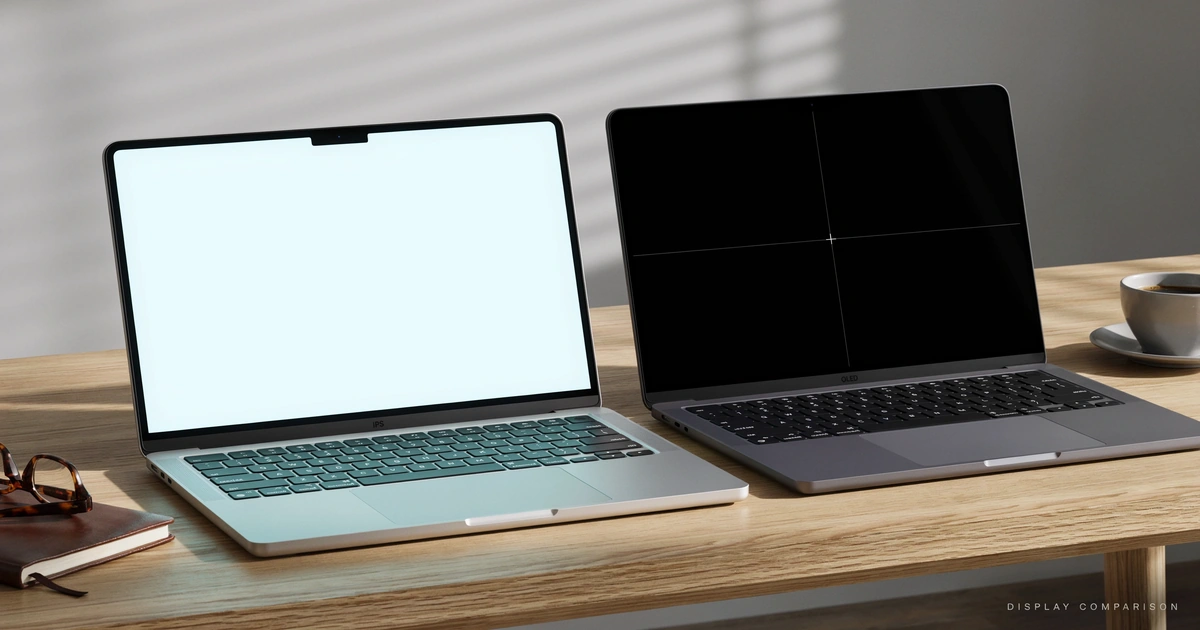
Laptop displays fall into two families: LCD (which includes IPS panels, lit by a backlight) and OLED (which lights each pixel individually). IPS offers reliable color and battery life at a lower cost. OLED delivers true blacks and higher contrast but costs more and carries some burn-in risk. Most buyers do fine with IPS.
- OLED panels produce true blacks because each pixel emits its own light; IPS panels filter a constant backlight, so black is really a dim gray.
- OLED laptops typically cost $150–$400 more than an equivalent IPS configuration.
- Under $800, expect IPS as the standard; OLED becomes common starting around $1,000–$1,200.
- IPS panels pair well with 144Hz–240Hz gaming refresh rates and carry zero burn-in risk from static HUDs.
- For color-critical work, look for 95%+ DCI-P3 coverage — a spec that matters on both OLED and IPS panels.
If you’ve been laptop shopping recently, you’ve probably run into this wall of confusion: one listing says “IPS,” another says “OLED,” a third just says “LED,” and none of it explains what you’ll actually notice when you open the lid. You’re not imagining the confusion — manufacturers aren’t exactly rushing to clarify it, because the more expensive option usually wins when shoppers don’t understand the difference.
Every laptop screen belongs to one of two families: LCD, which includes the IPS panels found in most laptops, and OLED, a newer technology that works completely differently under the hood. One isn’t simply “better” than the other — they make different tradeoffs, and which one you want depends on what you actually do on your laptop.
IPS (LCD)
Reliable color, all-day battery consistency, zero burn-in risk, and a lower price. The sensible default for browsing, spreadsheets, and everyday productivity.
OLED
True blacks and dramatically higher contrast. Worth the premium for video editors, photographers, and anyone who watches a lot of movies or streaming content.
Choose IPS if: your laptop lives mostly in browser tabs, spreadsheets, and word processors, you’re budget-conscious, or you’re worried about burn-in from a static taskbar or menu bar.
What Is an IPS/LCD Display? The Simple Explanation
IPS is a type of LCD panel — and LCD panels all share one thing in common: a backlight that’s always on.
IPS stands for In-Plane Switching. It describes how the liquid crystals inside the display twist to let light through or block it. An IPS laptop screen has a light source (usually LEDs) sitting behind the entire panel, shining constantly. Layered in front of that light are liquid crystals and colored filters that open and close like tiny shutters, deciding how much of that backlight reaches your eyes and what color it becomes.
Think of IPS like a stadium with the floodlights always on. What changes is how much light gets through colored gels positioned in front of them to create the picture you see. Even when a scene is supposed to look pitch black, those floodlights are still burning behind the scenes — so “black” on an IPS screen is really just a very dim gray.
This matters for buyers because IPS is the reason most mid-range and budget laptops look good in bright rooms, hold color steady from an angle, and don’t cost a fortune. It’s the reliable, well-understood default — the technology inside the vast majority of laptops sold in the US today, from Chromebooks to premium ultrabooks like the Dell XPS and most ASUS ZenBook configurations.
What Is an OLED Display? The Simple Explanation
OLED has no backlight at all — every single pixel makes its own light and can switch off completely.
OLED stands for Organic Light-Emitting Diode. Instead of shining a constant backlight through a layer of crystals, each individual pixel on an OLED panel is its own tiny light source, built from organic compounds that glow when electricity passes through them. When a pixel needs to show black, the laptop simply doesn’t send it power — that pixel goes fully dark.
Continuing the stadium analogy: OLED is like a stadium where every single seat has its own light bulb instead of shared floodlights. When a section should be dark, those bulbs just switch off completely — no light leaking in from somewhere else. That’s why OLED delivers “true black.”
“LED” and “OLED” are not the same technology, even though the names look similar. “LED” on a spec sheet almost always refers to the backlight inside a traditional LCD/IPS panel — not a competing display technology. If you see “LED-backlit IPS display” on a listing, that’s a regular IPS panel.
How Do OLED and IPS Actually Work?
The Basic Principle
IPS panels work by blocking and filtering a constant light source. OLED panels work by generating and controlling light at the pixel level. That one distinction — filtering existing light versus creating light on demand — explains almost every practical difference between the two technologies, from contrast to battery behavior to burn-in risk.
The Technical Mechanism
Inside an IPS panel, a layer of liquid crystals sits between two polarizing filters. When voltage is applied, those crystals twist in place, changing how much backlight passes through to a layer of red, green, and blue color filters above them. The backlight itself — usually a strip or array of white LEDs along the panel’s edge or behind it — runs at a steady brightness regardless of what’s on screen.
OLED skips the crystal-and-filter approach entirely. Each subpixel is coated with an organic compound that emits red, green, or blue light directly when current runs through it. There’s no separate light source to filter — the pixel is the light source. This is also why OLED panels can be made thinner and, in the case of some laptops, foldable in ways an IPS panel simply can’t match.
For a real-world comparison: a laptop with a mini-LED backlit IPS panel (like some MacBook Pro configurations) and a laptop with a genuine OLED panel (like the ASUS Zenbook OLED lineup) are both trying to solve the same problem — deep, convincing blacks — but they get there through two fundamentally different engineering approaches.
OLED vs IPS vs LCD — Key Differences at a Glance
| Factor | OLED | IPS (LCD) |
|---|---|---|
| Black levels | True black | Grayish black |
| Contrast ratio | Very high | Moderate |
| Color accuracy | Excellent | Very good |
| Peak brightness (HDR highlights) | Strong | Better sustained brightness |
| Burn-in risk | Yes, with static images over time | None |
| Battery life impact | Varies by content (dark content sips power) | More consistent regardless of content |
| Typical price premium | Higher | Lower |
Note: IPS is a type of LCD panel, so “IPS” and “LCD” aren’t compared as separate columns — they’re the same family. When you see “LCD” on a spec sheet, it almost always means IPS in a modern laptop.
Best Budget IPS — Acer Swift Go 14
Reliable color, all-day battery, no burn-in risk — from $649.
Best OLED Value — ASUS Zenbook 14 OLED
True blacks, punchy contrast, great for streaming and photo work — from $899.
A few practical takeaways from that table: if you spend a lot of time watching movies or editing photos and video, OLED’s contrast is genuinely noticeable, not just a marketing number. If you’re mostly in spreadsheets, browser tabs, and code editors — bright, static, mostly-white screens all day — IPS is not just “good enough,” it may actually be the more sensible choice given the burn-in consideration below.
What the Specs Actually Mean When You’re Shopping
Spec sheets throw out numbers most shoppers have no context for. Here’s how to translate the ones that actually matter for a laptop display.
Brightness (measured in nits): this tells you how usable the screen is in different lighting conditions.
| 300–400 nits | Fine for indoor use, dim rooms — Basic |
|---|---|
| 400–600 nits | Comfortable near windows, most home/office lighting — Good |
| 600+ nits (typical OLED HDR peak) | Bright highlights visible even in well-lit rooms — Excellent |
Color gamut (usually listed as % of DCI-P3 or sRGB): this measures how many colors the panel can actually display. Anything above 95% DCI-P3 is worth paying attention to if you do any photo or video work. Panel type isn’t the only spec that matters for that kind of use, either — pairing a color-accurate display with the right screen size and resolution makes a real difference in daily comfort, which our Laptop Screen Size Guide breaks down in detail.
Do You Actually Need OLED?
Perfect Fit
Need to judge blacks and shadow detail accurately — OLED’s contrast is a real working advantage.
Good Fit
Watch a lot of video content on the laptop screen and want the most striking picture.
Not Ideal
Mostly browser tabs, spreadsheets, and word processors — IPS covers this with no burn-in worries.
Not Ideal
Would rather put the $150–$400 OLED premium toward more RAM or storage.
If OLED sounds like you, don’t stop at the display spec — the processor driving that panel matters just as much for smooth editing performance. Our Laptop Processor Guide (Intel vs AMD vs Apple vs Snapdragon) breaks down which chips actually hold up under real creative workloads.
If IPS sounds like you, that saved premium tends to go furthest on the two upgrades that shape everyday responsiveness the most. Check our RAM buying guide to see whether 16GB or 32GB makes more sense for you, and our SSD vs HDD guide if storage speed and capacity matter more to your workflow than screen technology.
Is the Premium Worth It?
OLED laptops typically cost $150–$400 more than an equivalent IPS configuration. For creative professionals, that premium often pays for itself in reduced eye strain and more accurate color judgment. For general productivity use, it’s a nice-to-have rather than a need-to-have.
OLED Burn-In — How Worried Should You Be?
Burn-in happens when the same static image — a taskbar, a logo, a pinned browser tab — stays on screen at the same brightness for extended periods, gradually and permanently dimming those specific pixels faster than the pixels around them. It’s a real phenomenon on OLED panels, but modern laptops fight it in a few effective ways: automatic pixel shifting that nudges the image by a few pixels periodically, taskbar auto-hide settings, and screen savers that kick in during idle time.
In our long-term testing, moderate, varied daily use — browsing, streaming, working across different apps — carries low real-world burn-in risk over a laptop’s typical 3–5 year lifespan. The higher-risk scenario is leaving the same static image on screen at high brightness for many hours a day, every day, for years. Independent long-term testing backs this up: RTINGS’s real-life OLED burn-in testing shows burn-in developing mainly under extreme, static-heavy conditions rather than typical mixed use.
Since panel type is just one piece of how long a laptop stays useful, our laptop lifespan guide covers what else determines whether a laptop lasts 3 years or 7.
What to Look For When Buying — Applying This Knowledge
Now that you understand what separates these panel types, here’s how to apply it while you’re actually comparing laptops:
- Check the brightness rating — aim for at least 400 nits if you work near windows or in bright offices.
- Look for DCI-P3 coverage above 95% if color accuracy matters for your work, regardless of whether the panel is OLED or IPS.
- Match panel type to price tier realistically — under $800, expect IPS as the standard; OLED becomes common starting around $1,000–$1,200.
- Pair panel type with refresh rate if you game — a high refresh rate matters more for smooth gaming than panel type alone. Browse our Gaming Laptops coverage for models that get both right.
If battery life matters more to you than visual pop, IPS has a real edge for a reason — consistent power draw, regardless of what’s on screen, is one of its quieter advantages. That said, the display is only one factor in all-day battery life; the processor inside plays just as big a role, which our processor comparison guide covers in more depth.
Bottom line: IPS panels give you reliable color, solid battery life, and zero burn-in risk at a lower price — the sensible default for most laptop shopping. OLED panels trade some of that reliability and budget-friendliness for genuinely striking contrast and true blacks that matter most to video editors, photographers, and movie watchers. Neither one is the “wrong” choice — they’re built for different priorities.
Frequently Asked Questions About OLED vs IPS Laptop Displays
Is OLED better than IPS for laptops?
Does OLED screen burn in on laptops?
What’s the difference between OLED and LCD?
Do OLED laptops have shorter battery life?
What does IPS stand for?
Is IPS good enough for gaming laptops?
What’s the difference between LED and LCD?
Are OLED laptops worth the extra cost?
What is mini-LED, and how does it compare to OLED?
How long do OLED laptop screens last?

Shamim Sarker is the Founder and Lead Tech Reviewer at ShamimTechReview.com. With over 8 years of hands-on experience in consumer electronics, he specializes in unbiased reviews of smartphones, laptops, cameras, AI tools, and smart gadgets.
Shamim personally tests every product through rigorous real-world usage and data-driven benchmarks, maintaining complete transparency with no paid promotions. His mission is to help readers cut through marketing hype and make confident, informed buying decisions.