

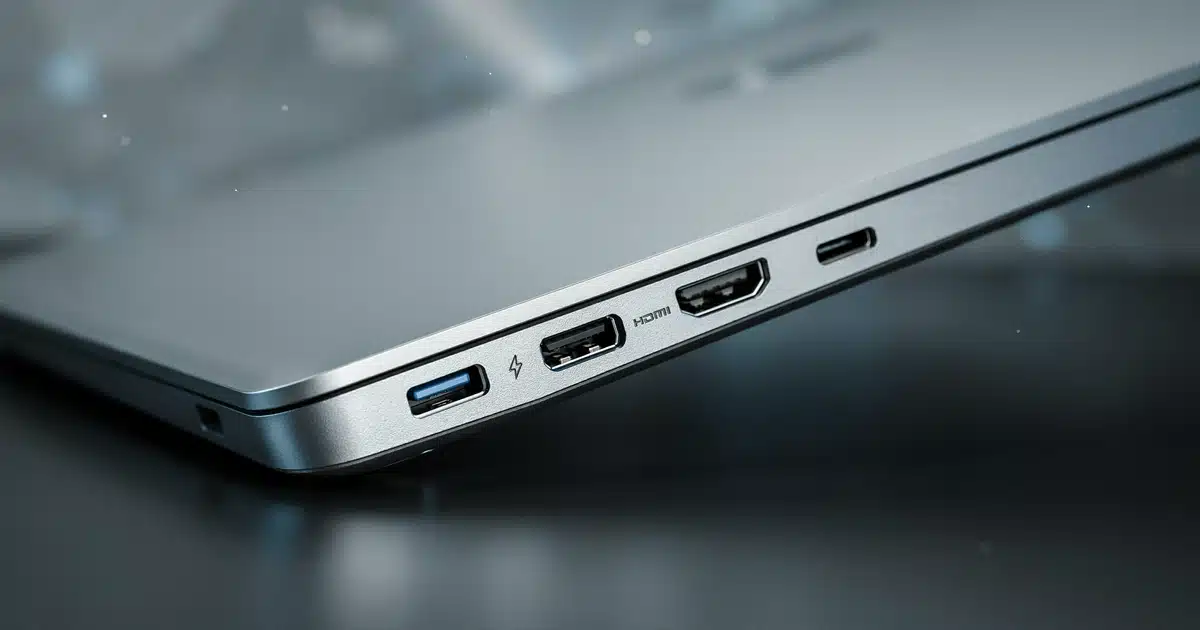

USB-C is just a connector shape, not a guarantee of speed or features. Thunderbolt 5, USB4, Thunderbolt 4, and HDMI are the actual standards that determine what a port can really do — and only Thunderbolt 5 delivers the full 80–120Gbps, 140W, multi-display combo that creators and power users need.
- Thunderbolt 5 runs an 80Gbps baseline with a dynamic Bandwidth Boost up to 120Gbps in one direction.
- Thunderbolt 5 supports charging up to 140W, versus 100W on Thunderbolt 4/USB4 and as little as 15–20W on basic USB-C.
- Thunderbolt 5 currently ships in Apple’s M4 Pro/Max and M5 Pro/Max MacBook Pros, plus select high-end Windows creator laptops and mobile workstations from Dell, HP, and Lenovo.
- AMD laptops don’t get certified Thunderbolt at all — Intel owns the trademark — so AMD systems rely on USB4 instead.
- HDMI 2.1 tops out at 48Gbps and remains the most universally compatible way to connect directly to a TV or monitor.
What Is a Laptop Port, Really? — The Simple Explanation
Here’s where people get mixed up: the shape of a port and the capability of a port are two completely separate things. Think of it like a highway system. USB-C is the shape of the road — a specific oval connector that fits a specific plug. Thunderbolt and USB4 are more like the speed limit and number of lanes on that road. Two roads can look identical from above, but one might be a single-lane country road and the other an eight-lane interstate. You can’t tell which is which just by looking at the pavement.
That matters to you as a buyer because two laptops can both list “USB-C” on the spec sheet and behave completely differently. One might charge at full speed and drive two 4K monitors; the other might only handle a phone charger. The connector doesn’t tell you that — the standard behind it does.
How Do Thunderbolt 5, USB-C, and HDMI Actually Work?
The Basic Principle
Every port moves information as electrical signals down a set of internal wires, called lanes. More lanes, or faster signaling per lane, means more data can move per second. Ports also negotiate with whatever you plug in — your laptop and your monitor “handshake” to agree on the fastest speed both devices can handle together.
The Technical Mechanism
USB-C is a connector standard — the physical plug shape — introduced to replace the older rectangular USB-A port. On its own, a USB-C port might only handle basic data and slow charging. But it can also carry DisplayPort Alt Mode (video) and USB Power Delivery (higher-wattage charging) if the laptop’s internal hardware supports them.
Thunderbolt, created by Intel, is a much faster protocol that also uses the USB-C connector shape. According to Intel’s official Thunderbolt technology overview, Thunderbolt 5 doubles the baseline bandwidth of its predecessor to 80Gbps, with a bidirectional Bandwidth Boost that can push up to 120Gbps in one direction for demanding tasks like driving multiple high-resolution monitors. It also introduces dynamic Bandwidth Boost, which reallocates capacity between data and display needs on the fly.
Thunderbolt 5 also supports Thunderbolt Share, Intel’s PC-to-PC feature that lets two Thunderbolt-equipped laptops move files or mirror a screen directly over a cable, no network needed. It works with Thunderbolt 4 too, but both machines need Share certification — still uncommon outside a handful of recent Windows models.
HDMI works differently — it’s a dedicated video-and-audio port with its own connector shape, unrelated to USB-C. HDMI 2.1 raised bandwidth significantly over HDMI 2.0, enabling higher resolutions and refresh rates, which matters if you’re connecting to a TV or a high-refresh gaming monitor.
Laptop port bandwidth compared, in Gbps.
Types of Laptop Ports — What the Variations Mean
Not every port that looks like USB-C behaves the same way. Here’s what you’ll actually encounter on a spec sheet.
USB-C, plain: Charges devices and transfers data at USB 3.2 speeds. No guarantee of video output or fast charging.
USB-C with Thunderbolt: The fastest tier. Full-speed data, video to multiple monitors, and high-wattage charging — but only Thunderbolt-certified laptops include it, usually marked with a small lightning bolt icon next to the port.
USB-C with DisplayPort Alt Mode (no Thunderbolt): Can output video to a monitor without the full Thunderbolt speed or bandwidth-sharing features.
HDMI 2.0 vs HDMI 2.1: Per the official HDMI 2.1 specification, HDMI 2.1 supports notably higher resolutions and refresh rates than HDMI 2.0, which matters when pairing your laptop with a 4K/120Hz display or a modern gaming monitor.
| Standard | Max Speed | Charging | Display Support | Common On |
|---|---|---|---|---|
| USB-C (basic) | Up to 10Gbps | Basic (often 15–20W) | Rare, limited | Budget/mid-range laptops |
| USB4 | Up to 40Gbps | Up to 100W | Yes, single 4K typical | Mainstream 2024–2026 laptops |
| Thunderbolt 4 | 40Gbps | Up to 100W | Dual 4K displays | Premium laptops, most MacBooks pre-M4 |
| Thunderbolt 5 | 80Gbps (up to 120Gbps boosted) | Up to 140W | Multiple 4K/6K displays | Apple M4/M5 Pro/Max MacBook Pro, select high-end Windows creator laptops and workstations |
| HDMI 2.0 | 18Gbps | None | 4K/60Hz | Budget and mid-range laptops |
| HDMI 2.1 | 48Gbps | None | 4K/120Hz, 8K/60Hz | Gaming and premium laptops |
What the Specs and Numbers Mean
Spec sheets love throwing numbers at you without context. Here’s the plain-English translation.
Bandwidth (Gbps): This is how much data can move per second. At 10Gbps, transferring a large video project folder might take a few minutes. At 40Gbps (Thunderbolt 4/USB4), that same transfer takes a fraction of the time. At 80Gbps (Thunderbolt 5), you’re moving large RAW video files or running an external GPU with barely any bottleneck at all.
Charging wattage: A 65W port charges a typical thin laptop overnight without issue but may struggle to keep a power-hungry gaming laptop topped up under load. 100W handles most mainstream and creator laptops comfortably. 140W (Thunderbolt 5) is aimed at larger workstation and gaming laptops that draw serious power under full load. For a deeper look at how charging speed ties into real-world battery performance, see our laptop battery life guide.
Marketing vs. reality: A laptop can advertise “USB-C” prominently while quietly leaving out that the port is data-only, with no charging or video support whatsoever. Always check the manufacturer’s detailed port specification, not just the headline feature list.
| Spec Range | What It Means | Our Verdict |
|---|---|---|
| Under 10Gbps, basic USB-C | Fine for a mouse, keyboard, phone charging | Basic |
| 40Gbps (USB4/Thunderbolt 4) | Comfortable for most productivity and creative work | Good |
| 80Gbps+ (Thunderbolt 5) | Built for video editing, eGPUs, multi-monitor setups | Excellent |
Do You Actually Need Thunderbolt 5?
Perfect Fit
Moving large 4K/8K footage between external drives benefits directly from the extra bandwidth.
Perfect Fit
Running an external GPU for gaming or rendering on a thin laptop needs the headroom.
Good Fit
Two or more high-resolution external monitors is exactly what Bandwidth Boost is built for.
Not Ideal
Browsing, email, streaming, and single-monitor setups won’t touch this level of bandwidth.
Thunderbolt 5’s real advantage isn’t raw speed for its own sake — it’s the dynamic Bandwidth Boost that lets the port shift capacity between your monitors and your data transfers as needed, instead of a fixed split. If your work genuinely pushes large files or multiple displays, that flexibility pays for itself. If it doesn’t, you’re paying a premium for headroom you’ll never touch.
If you’ve decided the extra bandwidth fits your workflow, the next question is which brand actually delivers it well. Our Dell vs HP vs Lenovo comparison is a good place to start, since Thunderbolt 5 availability varies a lot by brand and product line.
USB-C vs Thunderbolt vs HDMI — Key Differences
The short version of the Thunderbolt 5 vs. Thunderbolt 4 question: Thunderbolt 5 doubles baseline bandwidth (80Gbps vs. 40Gbps), raises charging headroom to 140W, and adds dynamic Bandwidth Boost — but Thunderbolt 4 remains plenty fast for most mainstream work. Here’s how all three standards stack up side by side.
| USB-C | Thunderbolt 5 | HDMI 2.1 | |
|---|---|---|---|
| Connector shape | Oval, reversible | Oval, reversible (same as USB-C) | Rectangular, not reversible |
| Primary job | Data + charging, sometimes video | Data + charging + video, all at once | Video + audio only |
| Max speed | Up to 40Gbps (USB4) | Up to 120Gbps boosted ✓ | 48Gbps |
| Charging | Yes, up to 100W typically | Yes, up to 140W ✓ | No |
| Best for | Everyday accessories, general charging | Heavy data transfer, eGPUs, multi-monitor workstations | Connecting to TVs and gaming monitors |
When to choose each: Use USB-C for everyday accessories and charging. Reach for Thunderbolt when you need serious data throughput or want to run multiple demanding displays off one cable. Use HDMI when connecting directly to a TV or a monitor that doesn’t support USB-C video input — it remains the most universally compatible video connection for external displays.
Setting up a desk with multiple monitors and want one cable to do it all? A Thunderbolt or USB-C hub is usually the answer — but docking station compatibility depends entirely on matching the dock’s certification to your laptop’s port, and the resolution you’re driving matters just as much for bandwidth. If you’re deciding between panel resolutions for that setup, our guide to what FHD, 2K, and 4K actually mean is worth a read first.
What to Look For When Buying a Laptop
Now that you understand what these standards actually do, here’s how to apply it while shopping:
Key Takeaways
- USB-C is a connector shape, not a speed or feature guarantee — always check the specific port’s certification.
- Thunderbolt 5 (80–120Gbps, 140W) is the current top tier, built for editors, eGPU users, and multi-monitor setups.
- Thunderbolt 4/USB4 (40Gbps, 100W) covers most mainstream productivity and creative work comfortably.
- HDMI 2.1 (48Gbps) remains the most universally compatible way to connect to a TV or external display.
- AMD laptops use USB4 instead of certified Thunderbolt, since Intel owns the Thunderbolt trademark.
Bandwidth is only part of the performance picture. If you’re speccing out a machine for heavy file transfers, our guide on how much RAM you actually need covers the other half of the equation, and our SSD vs HDD comparison explains why storage type matters just as much as port speed for real-world transfer times.
Our port breakdown is based on hands-on testing across dozens of laptops at ShamimTechReview.com, benchmarking real-world transfer speeds, charging wattage, and multi-display output against each standard’s rated specifications.
Which Port Standard Actually Matters for You?
USB-C is a connector shape, not a guarantee of speed or capability. Thunderbolt 5 represents the current high end of what that connector can do, with Thunderbolt 4 and USB4 covering most mainstream needs, and HDMI remaining the dependable standard for connecting directly to displays. The right choice comes down to your actual workload — not the port count printed on a spec sheet. If your work involves large file transfers, external GPUs, or multiple demanding displays, it’s worth prioritizing Thunderbolt 5 in your next laptop.
Frequently Asked Questions About Laptop Ports
What is the difference between USB-C and Thunderbolt?
Is Thunderbolt 5 backward compatible?
Can USB-C charge a laptop?
What laptops have Thunderbolt 5?
Why do some USB-C ports not support Thunderbolt?
What is the fastest laptop port available right now?
Is USB4 the same as Thunderbolt 4?
Do Macs use Thunderbolt or USB-C?
How many displays can Thunderbolt 5 support?
Is HDMI better than USB-C for connecting a monitor?

Shamim Sarker is the Founder and Lead Tech Reviewer at ShamimTechReview.com. With over 8 years of hands-on experience in consumer electronics, he specializes in unbiased reviews of smartphones, laptops, cameras, AI tools, and smart gadgets.
Shamim personally tests every product through rigorous real-world usage and data-driven benchmarks, maintaining complete transparency with no paid promotions. His mission is to help readers cut through marketing hype and make confident, informed buying decisions.