
Disclosure: This post contains affiliate links. We may earn a commission
at no extra cost to you. We only recommend products we’ve tested and trust.
Buyer’s Guide

A motherboard for a PC is the main circuit board that connects your CPU, RAM, storage,
and graphics card into one working system. When choosing one, match three things first:
your CPU’s socket type, your preferred form factor (ATX, Micro-ATX, or Mini-ITX), and the
RAM generation (DDR4 or DDR5) it supports. Everything else is a bonus feature.
- AMD’s current mainstream socket is AM5, paired with B650/X670 chipsets for everyday builds
or X870 for higher-end platforms; Intel’s current socket is LGA1851, paired with B860 for
mainstream builds or Z890 for overclocking and maximum PCIe lanes. - ATX boards typically offer 4 RAM slots and 3-4 PCIe slots; Micro-ATX offers 2-4 RAM slots
and 2-3 PCIe slots; Mini-ITX offers 2 RAM slots and just 1 PCIe slot. - DDR4 and DDR5 RAM use physically different slot designs and are never interchangeable on
the same board, regardless of chipset or socket. - Typical pricing runs $120-$500+ for ATX, $90-$220 for Micro-ATX, and $180-$450 for
Mini-ITX boards. - VRM (Voltage Regulator Module) quality matters most for power-hungry CPUs, sustained
workloads like video rendering, and overclocking — not for typical everyday use.
What a Motherboard Actually Does
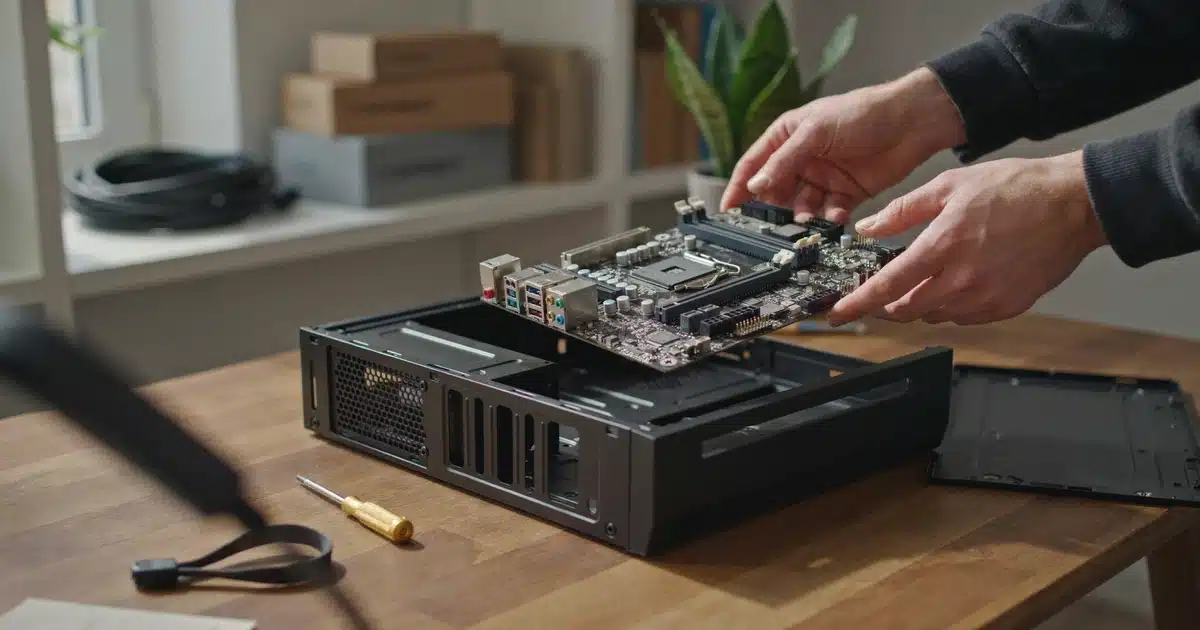
A motherboard for a PC is the central hub every other component plugs into. Your CPU sits in
a socket on the board, your RAM slots into channels beside it, storage connects through M.2 or
SATA, and your graphics card slides into a PCIe slot. Power from your PSU distributes across
the board to keep everything running — none of it works without the motherboard acting as
traffic controller. If you’re assembling every one of these parts for the first time, our
step-by-step PC building guide walks through the complete process.
Beyond physical connections, the board also houses the BIOS (UEFI firmware) — the low-level
software that boots your system before the OS loads, and where you’ll enable memory profiles
(XMP or EXPO) or overclock your CPU. It also sets your system’s ceiling: how many PCIe lanes
are available, how much RAM you can install, and which CPU and memory generations your system
can support at all.
What to Look For in a Motherboard for Your PC
before it recognizes a brand-new CPU. If you’re buying an older-stock board for a recently
released processor, check the manufacturer’s support page for a BIOS update requirement before
you build — not after your system fails to boot.
Price Tiers: What You Get at Each Level
| Tier | Budget | Mid-Range | Premium |
|---|---|---|---|
| Typical Price | $90 – $150 | $150 – $280 | $280 – $500+ |
| Chipset Tier | Entry-level (B-series) | Mainstream (B-series, higher SKU) | Enthusiast (X/Z-series) |
| VRM Quality | Fewer phases, basic cooling | Solid phases, adequate cooling | High phase count, premium cooling |
| Best For | Stock-clocked, everyday builds | Most gaming and productivity builds | Overclocking, sustained heavy workloads |
Form Factor Comparison Table
| Feature | ATX |
|---|---|
| RAM Slots | Typically 4 |
| PCIe Slots | Most (3-4 typical) |
| Case Compatibility | Full-size and mid-tower cases |
| Best For | Maximum expansion, future upgrades |
| Typical Price (USD) | $120 – $500+ |
| Feature | Micro-ATX |
|---|---|
| RAM Slots | Typically 2-4 |
| PCIe Slots | Fewer (2-3 typical) |
| Case Compatibility | Mid-tower and compact cases |
| Best For | Balanced size and features |
| Typical Price (USD) | $90 – $220 |
| Feature | Mini-ITX |
|---|---|
| RAM Slots | Typically 2 |
| PCIe Slots | Fewest (1 typical) |
| Case Compatibility | Small-form-factor cases only |
| Best For | Compact, portable builds |
| Typical Price (USD) | $180 – $450 |
Our Top Motherboard Picks by Budget and Build Type
If you’d rather skip the spec-hunting, here are our current picks across the most common
build types. Every board here follows the compatibility rules covered above — confirm the
socket still matches your exact CPU before buying.
Best Budget ATX — [Board Name, e.g., MSI PRO B650M-A WiFi]
[$XXX] · ATX · [Socket/Chipset] · [DDR4 or DDR5]
Solid VRM for the price, four RAM slots for future upgrades, and enough PCIe/M.2 room
for a first build. A good default pick if you’re not overclocking.
Best Micro-ATX Value — [Board Name]
[$XXX] · Micro-ATX · [Socket/Chipset] · [DDR4 or DDR5]
Trims size without cutting the features most builders actually use — a smart pick for
a mid-tower build on a tighter budget.
Best Mini-ITX for Compact Builds — [Board Name]
[$XXX] · Mini-ITX · [Socket/Chipset] · [DDR4 or DDR5]
Fits small-form-factor cases without sacrificing a usable VRM design — ideal for a
living-room or desk-space-limited build.
Best High-End / Overclocking — [Board Name]
[$XXX] · ATX · [Socket/Chipset] · DDR5
Premium VRM phases and cooling for sustained heavy workloads or serious overclocking
headroom — built for power-hungry, high-end CPUs.
Who Each Pick Is Really For
Perfect Fit
Building a first PC, sticking to stock CPU settings, and
want maximum future upgrade room without overpaying for features you won’t use — get the
budget ATX or Micro-ATX pick.
Good Fit
Desk space or portability is a real constraint and you’re
comfortable paying a premium for the smaller footprint — get the Mini-ITX pick. Want something
even smaller and pre-built? Our mini PC buying guide covers that alternative.
Perfect Fit
Running a power-hungry CPU, doing sustained workloads like
video rendering, or planning to overclock — the extra VRM headroom on the high-end pick is
worth the cost.
Skip This Tier
Not overclocking and running typical browsing, gaming, or
office workloads — a mid-tier board performs identically for everyday tasks, so skip the
premium tier.
Common Motherboard Buying Mistakes
A few mistakes show up again and again in first-time builds, and nearly all of them are
avoidable with a five-minute compatibility check before checkout.
confirmed CPU choice, you’re gambling on socket compatibility.
builders end up with a board that physically won’t mount, or one that blocks airflow and
cable routing.
baseline requires enabling an XMP or EXPO profile in the BIOS — it won’t run at rated speed
automatically out of the box.
socket and still need a firmware update before it recognizes a brand-new CPU.
add a second SSD, more RAM, or an expansion card later, leave a little headroom rather than
needing a full swap a year down the line.
Key Takeaways
Key Takeaways
- Follow this order: CPU socket first, form factor second, RAM generation third — this
single habit prevents most costly compatibility mistakes. - Chipset tier, connectivity, and M.2 count are about matching features to your needs and
budget, not hard compatibility limits. - Don’t let marketing language (“gaming,” “elite,” “extreme”) drive your decision — boards
in the same chipset tier often perform nearly identically for everyday use. - Differences between similarly tiered boards tend to show up in build quality, cooling,
and extra features, not raw performance. Spend where it genuinely matters for your build.
Frequently Asked Questions
Do I need a new motherboard when I upgrade my CPU?
current board’s chipset and BIOS support it, you can often reuse your existing motherboard.
Switching to a different CPU generation with a new socket does require a new board.
Does the motherboard affect gaming performance?
it can bottleneck performance if it limits RAM speed, PCIe bandwidth, or CPU power delivery.
For most gaming builds, a solid mid-tier board is enough to avoid any real-world impact.
Can I use DDR4 RAM in a DDR5 motherboard?
not interchangeable, regardless of what chipset or socket the board uses.
Is a more expensive motherboard always better?
extra connectivity, and cooling design rather than raw performance gains. A budget board
with adequate specs for your CPU will perform the same as a premium one in most everyday
tasks.
How many PCIe slots do I actually need?
Additional slots matter mainly if you’re adding capture cards, sound cards, or extra storage
controllers.
What’s the difference between a chipset and a socket?
determines the feature set built into that specific board — things like USB count,
overclocking support, and PCIe lane allocation.
Do all motherboards support Wi-Fi?
inclusion. Check the specific listing, and budget for a separate Wi-Fi card if it’s not
built in and you need wireless connectivity.
How do I know if a motherboard fits my case?
case’s supported motherboard sizes, which is always listed in the case’s specifications.
What is a VRM, and does it really matter?
CPU. It matters most with power-hungry CPUs or sustained heavy workloads; for typical
everyday use, most mid-tier boards have more than adequate VRM design.
Why won’t my new CPU boot on my existing motherboard?
recognize a newer CPU generation. Check the manufacturer’s support page for a BIOS update,
which sometimes requires an older, compatible CPU to perform the update first.
Conclusion
Choosing a motherboard for your PC doesn’t have to feel like decoding a spec sheet in a
foreign language. Once you understand the order that actually matters — CPU socket, form
factor, then RAM generation — the rest becomes a matter of matching features to your budget and
plans for the system. Take that approach into your next build, and you’ll avoid the
compatibility headaches that catch so many first-time builders off guard.

Shamim Sarker is the Founder and Lead Tech Reviewer at ShamimTechReview.com. With over 8 years of hands-on experience in consumer electronics, he specializes in unbiased reviews of smartphones, laptops, cameras, AI tools, and smart gadgets.
Shamim personally tests every product through rigorous real-world usage and data-driven benchmarks, maintaining complete transparency with no paid promotions. His mission is to help readers cut through marketing hype and make confident, informed buying decisions.