
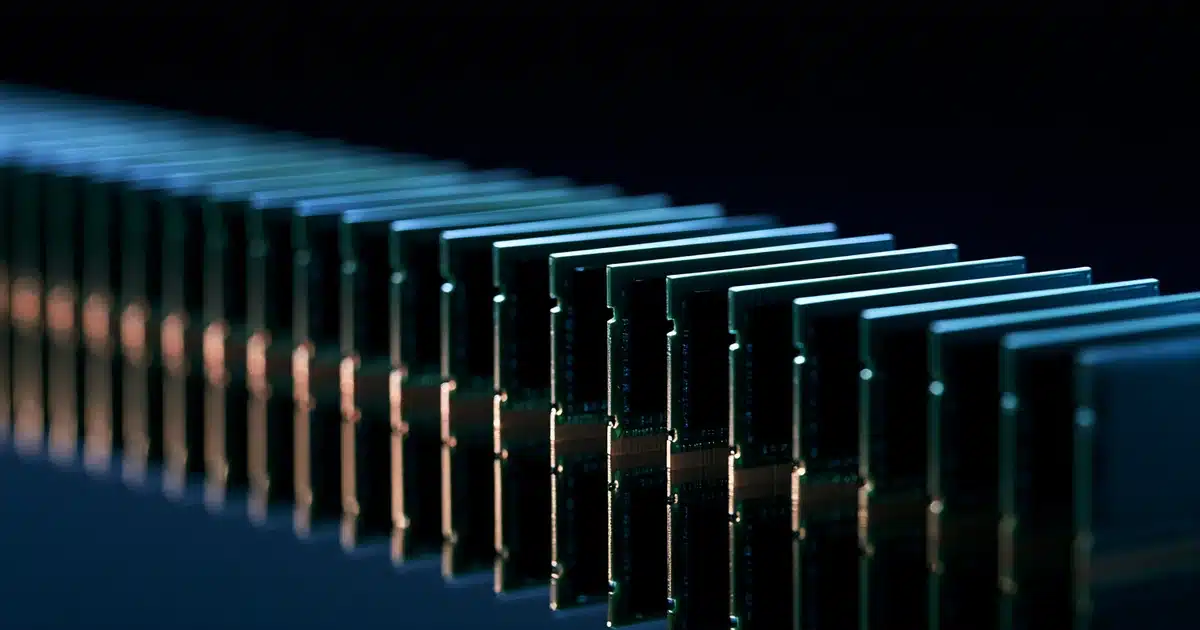

Most people need 16GB of RAM for a smooth PC in 2026. RAM is short-term memory that holds whatever you’re actively using — 8GB works for basic browsing but struggles the moment you multitask, while video editors, gamers, and anyone running local AI tools should look at 32GB or more.
- 16GB is the current recommended baseline for the large majority of USA buyers in 2026 — 4GB is the bare Windows 11 minimum, not a comfortable one.
- 8GB is fine for single-tasking only; modern browsers alone can consume 2–4GB with a dozen tabs open.
- 32GB is the starting point for video editors, developers, streamers, and anyone running local AI models on-device.
- DDR5 offers roughly 50% more bandwidth than DDR4 at similar capacities, and dual-channel configurations (two sticks) outperform a single stick of the same total size.
- Apple Silicon Macs use non-upgradeable unified memory — 16GB is the safer everyday baseline since you can’t add more later.
What Is RAM, Really? The Simple Explanation
Here’s the analogy that makes it click: think of RAM as your kitchen counter, and your storage drive (SSD or HDD) as your pantry. Your pantry can hold a huge amount of food, but it’s slow to dig through. Your counter is much smaller, but anything on it is instantly within reach while you’re cooking. When you’re only making toast, a small counter is fine. When you’re cooking a five-course meal with three pots going at once, you need a bigger counter — or you’ll be constantly shuffling things back to the pantry and losing time.
How Does RAM Actually Work?
Is more RAM always faster?
Every time you open an app, browser tab, or document, your computer copies the relevant data from storage into RAM. As long as it fits, everything runs fast. The moment your open programs need more space than your RAM has available, your system has to start swapping data in and out — and that’s where slowdowns come from.
What’s the technical mechanism behind RAM speed?
RAM is volatile memory — it only holds data while your computer is powered on, which is why it clears out on shutdown, unlike your SSD. Your processor reads from and writes to RAM at extremely high speeds, far faster than even the quickest SSD.
Modern systems typically use DDR4 or DDR5 memory, with DDR5 offering roughly 50% more bandwidth than DDR4 at similar capacities (see Corsair’s technical breakdown of DDR5 vs. DDR4 for the full spec comparison) — which is why two laptops both listed at “16GB” can still feel different. Most consumer systems also run RAM in dual-channel mode, meaning two memory sticks work together for close to double the bandwidth of a single stick — one reason we generally recommend two 8GB sticks over one 16GB stick when a laptop allows it.
RAM amount tells you how much you can have open at once before things slow down. RAM speed and channel configuration only affect how quickly your system moves data around within that space.
Types of RAM — What DDR4, DDR5, DIMM, and SODIMM Actually Mean
This is where a lot of shoppers get lost, so let’s clear it up quickly.
What About Macs? Apple’s Unified Memory Is Different
Everything above applies to traditional DDR4/DDR5 RAM — but if you’re shopping for a MacBook, iMac, or Mac mini, the rules change. Apple Silicon (M-series) chips use unified memory instead of conventional RAM: a single pool of high-bandwidth memory shared directly between the CPU and GPU, built onto the same chip package, an approach Apple first introduced with the M1 chip.
Still deciding between platforms rather than just memory size? Our MacBook vs. Windows laptop comparison breaks down where each platform’s memory approach actually matters day to day.
How Much RAM Do You Actually Need? (By Use Case)
This is the part that actually matters. Forget generic advice — here’s what real usage patterns require.
What the RAM Specs Actually Mean
Spec sheets throw numbers at you without context. Here’s what each one translates to in the real world.
| RAM Amount | What It Means in Practice |
|---|---|
| 4GB | Barely functional by 2026 standards — struggles with a modern browser alone. Avoid. |
| 8GB | Fine for single-tasking; noticeable slowdown with multiple apps open. Basic. |
| 16GB | Comfortable multitasking, most games, light creative work. Recommended. |
| 32GB | Smooth heavy multitasking, serious creative and dev work, local AI tools. Excellent. |
| 64GB+ | Overkill for most; built for specialized professional workloads. Professional. |
Capacity solves “can I have this many things open.” Speed only affects how fast things move once they’re already open.
Do You Actually Need More RAM?
32GB Recommended
4K/8K footage, local servers, containers, virtual machines, or gaming while recording and chatting — plus anyone running local AI models on their own machine or juggling 30+ tabs with multiple heavy apps.
16GB Recommended
General productivity, casual and mid-range gaming, or occasional light photo editing — 16GB comfortably covers a normal workday.
8GB Only If Budget-Constrained
Fine only for basic browsing on a computer that will run one app at a time — extremely budget-constrained purchases only.
RAM vs. Storage — Don’t Confuse the Two
This is the single most common mix-up we hear from USA shoppers. RAM and storage are not the same thing, even though both are measured in gigabytes.
A computer with 8GB of RAM and a 512GB SSD has plenty of room to store files, but will still slow down when you multitask, because those are two completely different jobs. If you’re weighing both specs together while planning a build, our step-by-step guide to building a PC walks through how to balance your RAM and storage budget.
RAM for AI PCs and Local AI Tools — The New Factor in 2026
Here’s the part I find genuinely interesting about where things are heading: RAM recommendations are climbing again, and this time it’s not just browsers and games driving it — it’s on-device AI.
A growing number of new laptops ship with a dedicated NPU (Neural Processing Unit) designed to run AI features directly on the device instead of sending everything to the cloud. That sounds like it should reduce the load on your regular system memory — and it does help — but running local AI models still requires a large, fast workspace to hold the model data while it’s being used. For the full picture of what these chips actually do, see our guide on what an NPU is and whether you actually need a Copilot+ AI PC.
Even with a capable NPU, a system doing meaningful local AI work needs a deep RAM reserve to feed it quickly, which is why 32GB is increasingly the recommendation for AI-focused PCs rather than 16GB.
If you’re buying a PC purely for browsing, office work, or media, this trend doesn’t change our recommendation — 16GB is still your sweet spot. But if you know you’ll be using on-device AI writing tools, local image generation, or AI-assisted creative software, it’s worth budgeting for 32GB from the start rather than upgrading later.
Can You Have Too Much RAM?
Short answer: not really, but there’s a point of diminishing returns. Your computer only uses the RAM it actually needs for what’s currently running — extra capacity just sits there unused. It won’t slow your system down or cause technical problems.
How to Check How Much RAM You’re Currently Using
Before deciding whether you need to upgrade or buy new, it’s worth checking what you actually have and how much of it you’re using:
On Windows
Open Task Manager (Ctrl + Shift + Esc), click the Performance tab, and select Memory. You’ll see your total RAM and how much is currently in use.
On Mac
Open Activity Monitor, click the Memory tab, and check the Memory Pressure graph — green means you’re fine, yellow or red means you’re running close to your limit regularly.
Watch Your Usage Over a Normal Workday
Not just at idle. If you’re consistently sitting above 80–90% of your total RAM during regular multitasking, that’s a clear sign it’s time to either upgrade or buy your next machine with more.
What to Look for When Buying
Now that you understand what RAM actually does, here’s how to apply that knowledge when you’re shopping:
Key Takeaways
- Default to 16GB unless you have a specific reason not to — it’s the current baseline for a computer that won’t frustrate you within the first year.
- Check if the RAM is upgradeable. Many modern ultrathin laptops solder RAM to the motherboard. If future flexibility matters, look for accessible SODIMM slots.
- Don’t overpay for speed over capacity. A laptop with faster but lower-capacity RAM will usually feel worse day-to-day than one with more RAM at a standard speed.
- Match RAM to your actual workload, not your aspirational one — unless you know you’ll be using local AI tools.
If you’re shopping for a new laptop right now, our complete guide to choosing a laptop walks through RAM alongside every other spec worth checking before you buy. And if you’re building or upgrading a desktop yourself, our beginner’s guide to building a PC covers how to pick DDR5 kits that give you the best value per gigabyte this year.
How Much RAM Do You Really Need?
RAM is your computer’s short-term workspace, and how much you need comes down to how many things you realistically do at once. For most USA buyers, 16GB is the current sweet spot — enough to multitask comfortably without paying for capacity you’ll never touch. Light users can get by on 8GB, while video editors, developers, serious gamers, and anyone running local AI tools should look toward 32GB or more.
Now that you know what to look for, our complete laptop buying guide highlights the right RAM balance for everyday use, and our PC building guide is the place to start if you’re upgrading a desktop yourself. If you’re still deciding between a desktop and a laptop altogether, our Desktop vs. Laptop comparison walks through RAM alongside every other spec that actually matters.
Frequently Asked Questions
Is 8GB of RAM enough in 2026?
Is 16GB of RAM good?
Is 16GB of RAM enough for gaming?
Can you have too much RAM?
Does more RAM make my computer faster?
Can I add more RAM later?
What’s the difference between RAM and a hard drive?
Do I need 32GB of RAM for video editing?
How much RAM do I need to run AI tools on my PC?
How do I check how much RAM I’m currently using?
How much RAM do I need for a MacBook?

Shamim Sarker is the Founder and Lead Tech Reviewer at ShamimTechReview.com. With over 8 years of hands-on experience in consumer electronics, he specializes in unbiased reviews of smartphones, laptops, cameras, AI tools, and smart gadgets.
Shamim personally tests every product through rigorous real-world usage and data-driven benchmarks, maintaining complete transparency with no paid promotions. His mission is to help readers cut through marketing hype and make confident, informed buying decisions.