

Explainer

- Per U.S. Department of Energy summaries of IEEE 1789-2015, full on/off PWM reaches the low-risk zone at 1,250Hz and the no-observable-effect zone at 3,000Hz.
- RTINGS reports that nearly 90% of monitors on its Test Bench 1.1 show no flicker at any backlight level.
- A 2023 SID Symposium study of OLED phones running 360Hz to 1,920Hz PWM, plus a DC mode, found no statistically significant difference in visual fatigue after about 35 minutes.
- Hybrid monitors often switch from DC dimming to PWM below roughly 20–30% brightness, according to DisplayNinja.
- None of the sources reviewed show permanent eye damage from PWM. Documented effects are discomfort symptoms such as eye strain and headaches.
You finish a long workday, and your eyes feel gritty. There’s a dull ache behind your forehead. Your monitor looks perfectly steady, so it’s easy to blame screen time and move on.
But that steady image may not be steady at all. Many screens dim themselves by switching the backlight on and off hundreds or thousands of times per second, using a method called PWM. You can’t see it, yet some people’s eyes and brains still react to it.
So when it comes to PWM vs flicker-free monitors, is “flicker-free” actually safer, or is it just a marketing label? The answer depends on one number most spec sheets leave out: flicker frequency. In this guide, we’ll walk through what PWM is, what the research really shows, which flicker frequencies matter, and how to check your own monitor in a couple of minutes with your phone.
What Is PWM Flicker, and Why Do Monitors Use It?
To judge which kind of monitor is easier on your eyes, it helps to know what’s happening behind the glass first.
Most LCD monitors light their image with LEDs behind the panel. When you lower the brightness, the monitor needs a way to make those LEDs give off less light. PWM, short for pulse-width modulation, is the most common shortcut.
How Does PWM Dim a Monitor Backlight?
Instead of turning the LEDs down, PWM switches them fully on and fully off in very fast cycles. BenQ’s explainer describes it as rapidly turning the backlight on and off to set screen brightness.
The trick is timing. At 100% brightness, the light stays on for nearly the whole cycle. At 30% brightness, it’s on for a shorter slice of each cycle and dark for the rest. Your eyes blend those pulses into one dimmer image.
That share of “on” time is called the duty cycle. Lower brightness means longer dark gaps, which is why PWM flicker usually gets worse as you turn the screen down.
Why Can’t You See PWM Flicker if Your Eyes Still React to It?
Your visual system has a limit called the critical flicker-fusion frequency. Above it, a flickering light looks steady.
Looking steady isn’t the same as going unnoticed, though. A 2025 Aston University doctoral thesis on digital eye strain cites research showing people can perceive flicker artifacts at rates above 500Hz, far higher than the roughly 90Hz limit once assumed.
Sensitivity also varies from person to person. Notebookcheck notes that when the PWM frequency is too low, users with sensitive eyes may get eye strain or headaches. That’s why two people can share one monitor and only one of them ends the day with a headache.
Why Do Manufacturers Still Use PWM?
If PWM can cause discomfort, why is it still so common? Mostly because it’s simple and practical. OLED-Info points out that PWM is easy to implement and can be highly efficient.
The alternative has trade-offs too, mainly on OLED screens. The same OLED-Info report notes that Xiaomi and OnePlus acknowledged DC dimming lowers image quality compared with PWM on their phones.
PWM itself isn’t the villain. Notebookcheck’s analysis makes the point that PWM isn’t a bad technology on its own. Problems come from poor implementations, especially low flicker frequencies.
We did not take our own flicker measurements for this article. This guide brings together published flicker measurements from RTINGS and Notebookcheck, the IEEE 1789-2015 recommended practice on flicker and health risk, and peer-reviewed and academic research on display flicker and visual fatigue. Every claim links to its source, so you can check it yourself.
What Makes a Monitor “Flicker-Free”?
Now that you know how PWM creates flicker, the flicker-free alternative is easy to picture: the light simply never switches off.
DisplayNinja explains that “flicker-free” (also sold as flicker-less or anti-flicker) means a monitor doesn’t use PWM to control brightness. Instead, it uses DC dimming, which keeps the light output constant at every brightness level.
What Is DC Dimming, in Plain English?
Think of a dimmer knob instead of a light switch. Rather than flipping the LEDs on and off, DC dimming changes the voltage sent to the backlight, so the LEDs just glow less brightly.
There are no dark gaps, so there’s nothing for your eyes to react to, even at very low brightness. BenQ says it introduced DC backlight dimming and released the first flicker-free monitor in 2011. Today, about 9 in 10 monitors RTINGS has tested are flicker-free at every brightness level.
Illustrative diagram (not measured data): PWM averages bright pulses into a dimmer image, while DC dimming lowers the light level directly.
What Is Hybrid Dimming?
Some screens mix both methods. They use DC dimming at medium and high brightness, then switch to PWM near the bottom of the range. Android Central notes that phones from OnePlus, Honor, and Nothing work this way, using high-frequency PWM at low brightness.
Monitors can behave similarly. Monitor maker KTC warns that some displays are flicker-free at high brightness but add PWM below a certain level, which is exactly where many people set their screen for evening work.
“Flicker-free” only counts if it holds across the full brightness range you actually use.
PWM vs Flicker-Free: Side-by-Side Comparison
With both dimming methods explained, here’s how they stack up on the points that matter most for everyday use.
| Feature | PWM Dimming | Flicker-Free (DC Dimming) |
|---|---|---|
| How it dims | Switches the backlight fully on and off in fast cycles | Lowers the voltage, so the LEDs glow less brightly |
| Light output | Pulsing; your eyes average it into one brightness level | Steady at every brightness level ✓ |
| When flicker shows up | At every level below 100%, strongest at low brightness (hybrid designs: only below a cutoff, often 20–30%) | Never, if it’s truly flicker-free across the full range ✓ |
| Risk for sensitive users | Eye strain or headaches possible, mainly at low frequencies | No flicker-related risk ✓ |
| Trade-offs | Simple and efficient to build | On some OLED screens, can lower image quality at very low brightness |
| How common on monitors | Now the minority | About 9 in 10 monitors RTINGS has tested |
| Best for | Users who keep brightness high and don’t notice flicker | Long workdays, dim rooms, migraine-prone users |
Sources: brightness behavior from DisplayNinja; sensitivity from Notebookcheck; OLED trade-off from OLED-Info; prevalence from RTINGS.
Refresh rate isn’t on this table because it doesn’t decide flicker. A fast gaming monitor can still pulse its backlight when you dim it.
In fact, KTC points out that a 240Hz monitor with low-frequency PWM can feel worse than a 60Hz office monitor with a steady DC-dimmed backlight. When comfort is the goal, check the dimming method before the refresh rate.
Is PWM Actually Bad for Your Eyes? What the Evidence Says
Flicker-free clearly looks better on paper, but “safer” is a health claim, and health claims deserve evidence. Here’s what the research supports, and where it falls short.
What Symptoms Does Flicker Sensitivity Cause?
The most detailed reference on flicker and health is the IEEE 1789-2015 recommended practice. A 2018 presentation by Pacific Northwest National Laboratory summarizing it lists the main effects as:
- Eye strain (the clinical term is asthenopia)
- Fatigue and blurred vision
- Headaches
- Worse performance on visually demanding tasks
Notice what’s not on that list: permanent eye damage. None of the sources reviewed for this guide show lasting harm from PWM. The documented effects are discomfort-type symptoms that can make long screen sessions miserable.
What Does the Research Support, and Where Is It Weak?
The evidence is mixed, and it depends heavily on frequency.
Evidence that flicker matters: IEEE 1789 was written mainly for LED lighting, not monitors. Still, lighting maker DIAL’s summary of the standard notes that frequencies in the 100–400Hz range can still affect the body, with one study finding higher headache risk at 100Hz when flicker depth topped 35%.
BenQ’s eye-care white paper also cites a Kitasato University study in which DC dimming produced the lowest levels of flicker and eye fatigue. Keep in mind that BenQ sells flicker-free monitors, so treat this as a manufacturer-cited result.
Evidence that it may matter less than you think: A 2023 study in the SID Symposium Digest tested OLED phone dimming frequencies from 360Hz to 1,920Hz, plus a DC mode. After about 35 minutes of viewing in the dark, it found no statistically significant difference in visual fatigue, measured either by ratings or objective tests.
That study has limits. It used phones, not monitors, and the sessions were short. A full workday is a very different test.
Viewing distance may matter too. A 2021 study in the Journal of Information Display found that a phone OLED using 240Hz PWM produced low measured flicker at normal viewing distances, similar to DC dimming. Monitors sit even farther from your eyes, but they use a different backlight design, so the result doesn’t transfer directly.
The case against PWM is strongest for low frequencies and sensitive users, not for everyone.
Why Are Some People Far More Sensitive to Flicker Than Others?
Flicker doesn’t affect everyone equally. A technical paper on backlight flicker from the Technical University of Sofia identifies the groups most at risk:
- People who get migraines or are sensitive to patterns and stripes
- People with photosensitive epilepsy
- Anyone doing a lot of reading, since flicker can cause larger eye jumps (saccades) across text
For people in these groups, the guidance is clearer. A 2026 review of digital eye strain research recommends high native refresh rates or alternatives to PWM for symptomatic users.
If you’ve never had screen-related headaches, PWM may never bother you. If you have, a flicker-free monitor is one of the simplest variables to remove.
PWM Frequency Matters More Than the Label
Since the research points to frequency as the deciding factor, it’s worth knowing which numbers are actually risky.
What’s the Difference Between Low-Frequency and High-Frequency PWM?
Not all PWM is equal. The faster the backlight cycles, the shorter each dark gap, and the harder it is for your visual system to react.
The difference can be huge. Notebookcheck has measured laptop screens flickering at just 362Hz, while also reporting a Gigabyte Aero 15 panel running PWM at 26,000Hz, which it says should cause no problems for anyone’s eyes. Both are “PWM,” but they’re nowhere near the same experience.
What Does the IEEE 1789 Standard Say About Safe PWM Frequency?
IEEE 1789 doesn’t just say “flicker is bad.” It ties safe flicker depth to frequency. The lower the frequency, the less flicker it allows.
According to the U.S. Department of Energy’s summary, at 120Hz the maximum allowable flicker is just 10%. At 1,250Hz or higher, 100% flicker is allowed.
That matters because monitor PWM switches the light fully on and fully off, which is 100% flicker. So in practice, a DOE bulletin on the standard notes that basic PWM needs to run at 1,250Hz or higher to reach the low-risk zone, and 3,000Hz or higher to reach the no-observable-effect zone.
| PWM Frequency (full on/off) | IEEE 1789 Zone | What It Means for You |
|---|---|---|
| Below 1,250Hz | Outside the low-risk zone | Most likely to cause strain or headaches in sensitive users |
| 1,250–2,999Hz | Low risk | Fine for most people; very sensitive users may still notice |
| 3,000Hz and up | No observable effect | Unlikely to bother almost anyone |
| No PWM (DC dimming) | No flicker ✓ | The safest option, with nothing to react to |
Zones based on the IEEE 1789-2015 recommended practice as summarized by the U.S. Department of Energy. IEEE 1789 was written for LED lighting; applying it to monitors is a widely used rule of thumb, not an official monitor certification.
The higher the PWM frequency, the lower the flicker risk. DC dimming removes flicker entirely.
Why Is PWM Flicker Worse at Low Brightness?
On a classic PWM monitor, the backlight pulses at every brightness level below 100%. The dark gaps simply get longer as you dim it, so flicker is most noticeable at low settings.
Hybrid monitors are trickier. They’re steady at higher brightness and only switch to PWM below a set point. DisplayNinja notes that this cutoff often sits around 20–30% brightness, and sometimes closer to 50%. Notebookcheck’s 362Hz example above only kicked in at 10% brightness or lower.
If you work in a dim room with your screen turned down, you’re in exactly the range where PWM flicker is strongest. Test your monitor at the brightness you actually use in the evening.
How Common Is PWM on Monitors Today?
Here’s some reassurance: most desktop monitors measured today don’t use PWM at all.
RTINGS, which measures flicker with a photodiode at different backlight levels, reports that nearly 90% of the monitors it has tested on its Test Bench 1.1 are completely flicker-free at every backlight level. RTINGS only gives a monitor that rating when there’s no flicker at any brightness setting, so the bar is strict.
In other words, if you buy a current monitor, odds are good it’s already flicker-free. The models worth double-checking are ones without a published flicker measurement.
Can a “Flicker-Free” Label Still Mislead You?
The label alone isn’t proof. DisplayNinja cites the Samsung U32J590 as an example of a monitor it says was falsely advertised as flicker-free. It also notes the opposite problem: some genuinely flicker-free monitors don’t mention it on their spec sheets at all.
That’s why it’s best to treat “flicker-free” as a starting claim, not a final verdict. An independent measurement beats a marketing badge.
Most of this applies to LCD monitors with a backlight.
What About OLED Monitors?
OLED monitors don’t have a backlight at all, so the PWM-versus-DC question works a little differently for them. Each pixel makes its own light.
RTINGS explains that OLED monitors show a slight dip in brightness that lines up with the refresh rate. Because of that dip, RTINGS doesn’t label them flicker-free, even though it records their PWM frequency as zero.
So OLED monitors sit in a gray zone. They don’t flicker the way a low-frequency PWM backlight does, but they aren’t perfectly steady either. For most people, that small refresh-linked dip isn’t a concern.
Be careful about borrowing phone research here. OLED phones have their own track record with PWM. A 2025 Aston University thesis cites data putting OLED phone PWM at roughly 50–500Hz, compared with LCD PWM that typically starts around 1,000Hz or higher. Phone and monitor OLEDs use different driving designs, though, so those numbers don’t automatically apply to your desktop screen.
The practical advice is simple. If you’re flicker-sensitive and shopping for an OLED monitor, look up the exact model’s measured flicker results before you buy, and keep the return window in mind.
How to Test Your Monitor for PWM at Home
You don’t need lab gear to get a good first answer. Your phone and a pencil will do.
Lower your monitor’s brightness to 30–50%. Use the monitor’s own menu buttons, not a Windows or macOS slider. PWM flicker is strongest at lower brightness, so testing at 100% can hide it.
Open a plain white or light-gray screen. A blank browser tab or an empty document works well.
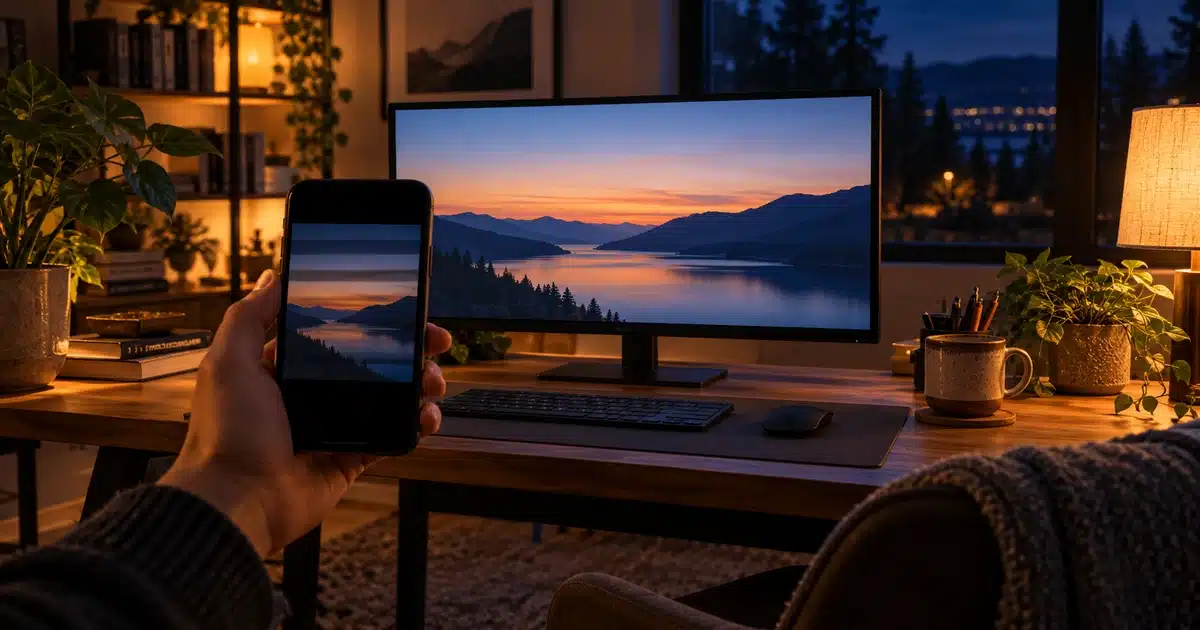
Point your phone’s camera at the screen. Look at the live preview, not a photo. If you see dark horizontal bands rolling across the screen, DisplayNinja says your monitor is flickering, even if your eyes can’t see it.
Use a fast shutter speed if your phone allows it. KTC suggests a manual or “pro” camera mode at around 1/4000 second, which makes bands easier to spot.
Try the pencil test. Wave a pencil quickly in front of the screen. A smooth blur suggests steady light. A row of separate pencil “copies” suggests PWM.
Repeat at your usual brightness. If bands only appear at your evening setting, that’s the setting that matters for you.
Know the limits of a home test. KTC notes that a clean, evenly lit camera preview points to either DC dimming or high-frequency PWM, which is less likely to cause problems. A phone can’t tell you the exact frequency. For a precise number, look up your exact model in measured reviews from RTINGS or Notebookcheck, which use dedicated measuring tools.
Who Should Prioritize a Flicker-Free Monitor (and Who Can Relax)
Since flicker affects people so differently, the right choice depends on your habits and your history with screen discomfort.
- Get migraines or are bothered by stripes and patterns, two of the at-risk groups named in a Technical University of Sofia paper on backlight flicker
- Read or edit text for most of the day, since the same paper notes flicker can cause larger eye jumps while reading
- Work in a dim room with the screen turned down, the range where PWM flicker is strongest
- Already get eye strain or headaches that ease up when you step away from the screen
- Have photosensitive epilepsy (and in that case, talk with your doctor about all screen use, not just monitor choice)
- Keep your brightness high, since PWM’s dark gaps are shortest near full brightness, and many hybrid monitors only switch to PWM at lower settings
- Own a monitor measured as flicker-free, or one with PWM at 3,000Hz or above
- Have never noticed symptoms, even after long sessions
One honest caveat for the first group: a flicker-free monitor isn’t a cure-all. KTC, which sells flicker-free monitors, says DC dimming helps many users but isn’t a guaranteed fix, since headaches can also come from glare, poor posture, and dry eyes.
Removing flicker takes one variable off the table. It works best alongside good lighting, a comfortable screen position, and regular breaks.
How to Choose a Truly Flicker-Free Monitor
If flicker-free is on your must-have list, a few minutes of checking before you buy can save you from a monitor that only looks good on the box. For the bigger picture on panel types, resolution, and size, see our monitor buying guide.
Which Labels and Measurements Should You Look For?
Some labels carry more weight than others. BenQ, for example, says its flicker-free technology is certified by TÜV Rheinland, an independent testing body. A named third-party certification is a stronger signal than a generic badge.
Wording matters too. A spec sheet that explicitly lists “DC dimming” is a more specific claim than a generic “flicker-free” badge, so it’s a better starting point.
Best of all is a measured result: an independent review, such as those from RTINGS, that checks for PWM across the full brightness range, not just at one setting.
Is Flicker-Free the Same as Low Blue Light or a High Refresh Rate?
These features often appear side by side on spec sheets, but they solve different problems. Low blue light modes change the color balance of the image, while flicker-free describes how the backlight is dimmed. And as the comparison above shows, a 144Hz or 240Hz monitor can still pulse its backlight when dimmed.
There’s also a different kind of flicker to know about. AOC markets the Q27G3XMN as flicker-free with a DC-driven backlight, yet RTINGS found it has distracting VRR flicker when game frame rates change. No PWM doesn’t always mean no flicker of any kind, especially for gamers.
- Spec sheet says “DC dimming,” or the monitor has third-party flicker-free certification
- An independent review confirms no PWM at every brightness level
- If it does use PWM, the measured frequency is 3,000Hz or higher
- Gamers: check the review for VRR flicker, too
- Buy from a store with an easy return window if you’re very sensitive
Already Own a PWM Monitor? What Can You Do?
You may not need a new screen right away. DisplayNinja suggests setting the monitor’s own brightness to 100%, where PWM usually isn’t active, and then lowering brightness through your graphics card or a third-party app instead.
Brightening your room helps too, because you won’t feel the need to turn the screen down as far. If symptoms continue after that, a measured flicker-free monitor is the logical next step.
Bottom Line: Which Is Safer for Your Eyes?
Should You Choose a Flicker-Free Monitor Over PWM?
A flicker-free monitor with true DC dimming is the safer choice for your eyes. It removes flicker at every brightness level, so there’s simply nothing for your eyes or brain to react to.
That said, PWM isn’t the health threat some brand blogs make it out to be. The research points to low-frequency PWM as the real problem, and mostly for sensitive users: people with migraines, heavy readers, and anyone who runs a dim screen in a dark room. PWM at 3,000Hz or more is unlikely to bother almost anyone, and none of the sources reviewed for this guide show lasting eye damage.
The good news is that most modern monitors already skip PWM entirely. If you’re shopping, confirm flicker-free behavior with an independent measurement, not just a badge on the box.
If you already own a monitor, try the quick phone camera test tonight. If you see rolling bands and you’re also getting headaches, that’s your clearest sign it’s time to upgrade.
Frequently Asked Questions
Is PWM bad for your eyes?
Not for everyone. Low-frequency PWM can cause eye strain, headaches, and blurred vision in sensitive people, especially at low brightness. High-frequency PWM at 3,000Hz and up falls in the IEEE 1789 no-observable-effect zone. None of the research reviewed for this guide shows permanent eye damage from PWM.
Is DC dimming better than PWM?
For eye comfort, yes. DC dimming lowers brightness by reducing voltage, so the light never switches off and there’s no flicker. PWM is simple and efficient and can preserve image quality on some OLED screens, but DC dimming removes flicker as a variable entirely.
How do I know if my monitor uses PWM?
Lower the brightness to 30–50%, open a white screen, and look at it through your phone’s camera. Dark horizontal bands rolling across the preview mean PWM. For an exact frequency, check measured reviews from RTINGS or Notebookcheck, since a phone can’t measure frequency.
What PWM frequency is safe for your eyes?
Under the IEEE 1789 guideline, full on/off PWM needs at least 1,250Hz to reach the low-risk zone and 3,000Hz or more for the no-observable-effect zone. Below 1,250Hz, sensitive users are most likely to notice strain. No PWM at all, using DC dimming, is the safest option.
Are OLED monitors flicker-free?
Not technically. OLED monitors don’t use a backlight, and RTINGS records their PWM frequency as zero, but they show a slight brightness dip tied to the refresh rate. For most people, that’s not a concern. If you’re very flicker-sensitive, check the exact model’s measured results before buying.
Is low blue light the same as flicker-free?
No. Low blue light modes reduce the share of blue light in the image, while flicker-free describes how the backlight is dimmed. A monitor can have one feature without the other, so check for both separately if eye comfort is your main goal.
Does a higher refresh rate reduce flicker?
Not backlight flicker. Refresh rate is how often the image updates, while PWM flicker comes from how the backlight dims. A 240Hz monitor with low-frequency PWM can feel worse than a 60Hz monitor with steady DC dimming. Check the dimming method, not just the refresh rate.
Can a flicker-free monitor stop headaches?
It can help if flicker is part of the cause, but it isn’t a guaranteed fix. Screen-related headaches can also come from glare, poor posture, dry eyes, and long sessions without breaks. If headaches continue after switching monitors, talk with an eye doctor.
Why does my monitor only flicker at low brightness?
Because PWM creates dimness with dark gaps between light pulses. The lower the brightness, the longer the gaps, so flicker is strongest at low settings. Some hybrid monitors use steady DC dimming at higher brightness and only switch to PWM below a cutoff, often around 20–30%.
References
- 1
- 2
- 3
-
4
Wu, Z., Wang, L., Tu, Y., Sun, Y., Jiang, C., and Wang, D.
“Effect of PWM Dimming Frequency of OLED Smartphones on Visual Fatigue.” SID Symposium Digest of Technical Papers 54(S1).
April 2023 - 5
- 6
- 7

Shamim Sarker is the Founder and Lead Tech Reviewer at ShamimTechReview.com. With over 8 years of hands-on experience in consumer electronics, he specializes in unbiased reviews of smartphones, laptops, cameras, AI tools, and smart gadgets.
Shamim personally tests every product through rigorous real-world usage and data-driven benchmarks, maintaining complete transparency with no paid promotions. His mission is to help readers cut through marketing hype and make confident, informed buying decisions.