

Buyer’s Guide

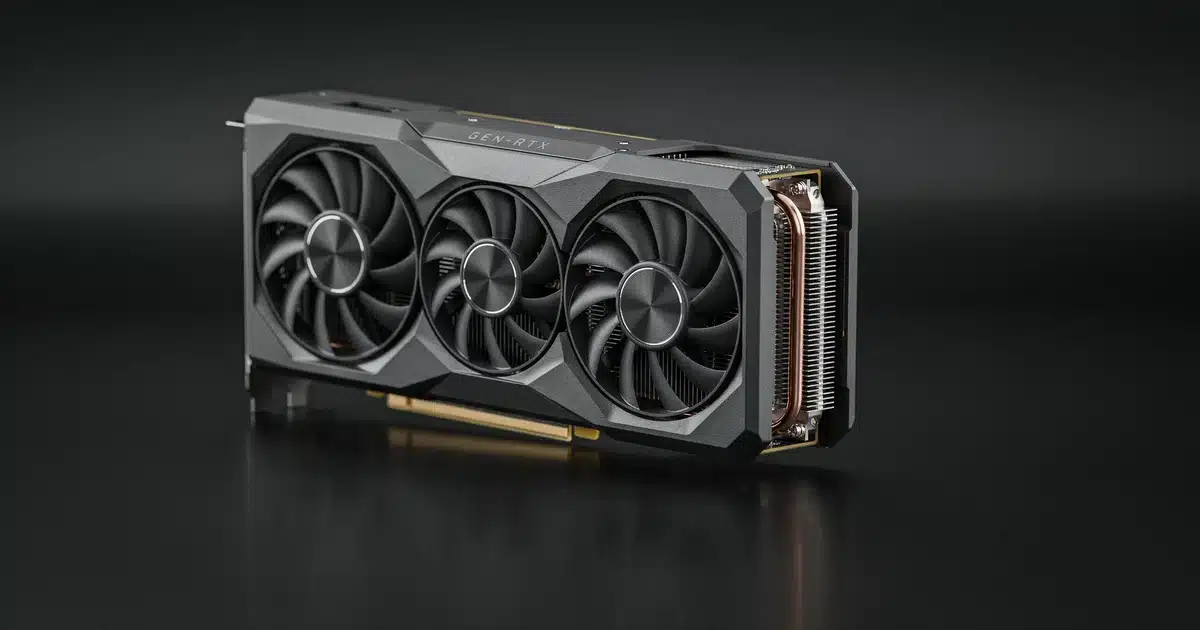
A graphics card (GPU) is a component that renders images, video, and 3D graphics for your display, taking that workload off your CPU. Most PCs come with basic integrated graphics built into the processor, which is fine for everyday tasks. You need a dedicated graphics card if you play modern games, edit video, do 3D work, or want smooth performance on high-resolution or multi-monitor setups.
- VRAM needs by resolution: 8GB minimum for 1080p, 12GB for 1440p, 16GB+ for 4K or heavy video editing in 2026.
- Budget tiers range from under $250 (Intel Arc B570) up to $1,500+ (Nvidia RTX 5090), with the $350–$600 mid-range tier offering the best price-to-performance for most buyers.
- NVIDIA’s RTX series leads in ray tracing and DLSS upscaling; AMD’s RDNA 4-based Radeon RX cards offer stronger raw performance and more VRAM per dollar; Intel Arc leads VRAM capacity in the budget tier.
- Nearly all modern GPUs use a PCIe x16 slot with PCIe 4.0 or 5.0 support, and require adequate PSU wattage plus the correct 8-pin, 12-pin, or 16-pin power connectors.
- AI infrastructure demand has pressured VRAM supply throughout 2026, keeping pricing on 16GB+ cards elevated and unlikely to drop significantly before year’s end.
What Does a Graphics Card Actually Do?
At its core, a graphics card (also called a GPU, video card, or display adapter) is the component responsible for turning raw data into the images, video, and animations you see on your monitor. Every time your screen updates — a webpage loads, a game world renders, a video plays — something has to calculate millions of pixels, colors, and lighting effects in real time. That’s the job of the graphics processing unit.
Your computer’s central processing unit (CPU) can handle this too, in a basic way, but it isn’t built for it. CPUs are designed for sequential, general-purpose tasks — running your operating system, opening applications, handling background processes. Graphics work is different. It’s massively parallel, meaning thousands of small calculations need to happen simultaneously rather than one after another.
That’s why a dedicated graphics card can render a AAA game at 100+ frames per second while a CPU trying to do the same job would grind to a crawl. It’s also why GPUs have become essential far outside of gaming — video editing software, 3D rendering tools, and even AI applications rely on the same parallel processing strengths to speed up work that would otherwise take hours.
Do You Actually Need a Dedicated Graphics Card?
This is the question I get asked more than almost any other about building or upgrading a gaming PC, and the honest answer is: it depends entirely on what you actually do with your PC. A lot of buying guides skip this step and jump straight into recommending products, but I think that does readers a disservice. Plenty of people spend $300–$800 on a graphics card they genuinely didn’t need.
You Probably Don’t Need a Dedicated GPU If You Mainly…
- Browse the web, check email, and use office applications
- Watch streaming video, even in 4K
- Do light photo editing (cropping, basic color correction)
- Use your PC for schoolwork, spreadsheets, or general productivity
You Almost Certainly Do Need One If You…
- Play modern 3D games, especially at 1440p or 4K
- Edit video regularly, particularly 4K footage with heavy effects
- Do 3D modeling, CAD work, or animation
- Livestream your gameplay
- Work with AI tools or machine learning models
- Run multiple high-resolution monitors
Integrated vs. Dedicated Graphics: A Real Comparison
| Factor | Integrated Graphics | Dedicated Graphics Card |
|---|---|---|
| Location | Built into the CPU | Separate expansion card |
| Cost | Included with processor | $150–$2,000+ additional |
| Power Draw | Low | Moderate to high |
| Gaming Performance | Basic to light gaming only | Solid 1080p to 4K enthusiast |
| Video/3D Editing | Struggles with demanding projects | Purpose-built for this work |
| Upgradeability | Tied to your CPU | Can be swapped independently |
| Best For | Everyday users, office work, casual browsing | Gamers, creators, streamers, AI/ML users |
Types of Graphics Cards and Who They’re For
Not every graphics card is built for the same job. Understanding these categories will save you from either overspending or underbuying.
Entry-Level / Budget Cards
Typically priced under $300, these cards are designed for 1080p gaming at medium-to-high settings, general productivity, and light content creation. They’re a great fit if you’re building your first gaming PC or upgrading from integrated graphics without a huge budget.
Mid-Range Cards
Usually in the $300–$700 range, mid-range cards handle 1440p gaming comfortably, most video editing workflows, and moderate 3D work. This tier tends to offer the best overall value, since it balances real-world performance against price without chasing diminishing returns.
High-End / Enthusiast Cards
Priced from roughly $700 up to $2,000+, these cards target 4K gaming with ray tracing enabled, professional video and 3D production, and heavy AI/ML workloads. Unless your work or hobby genuinely demands this level of performance, this tier is usually overkill for the average user.
Workstation / Professional Cards
A smaller category built specifically for CAD, scientific computing, video production pipelines, and enterprise AI work. These cards prioritize stability, certified drivers, and specialized features over gaming performance, and they’re generally not the right choice for a typical home PC.
Key Takeaway
- For most people, the entry-level and mid-range tiers cover the vast majority of real-world needs.
How to Choose the Right Graphics Card
Once you’ve decided you need a dedicated GPU, the next step is narrowing down which one actually fits your needs. In my experience helping people through this decision, it almost always comes down to three questions.
Is 1080p, 1440p, or 4K the resolution I’m targeting?
How much VRAM do I actually need?
What’s my actual use case?
NVIDIA vs. AMD vs. Intel in 2026
The GPU market in 2026 is genuinely more competitive than it’s been in years, with three real manufacturers worth considering instead of two.
There’s no universally “correct” brand — the right choice depends on your budget, whether ray tracing visuals matter to you, and which specific card offers the best value at the moment you’re buying.
The Compatibility Checklist Nobody Explains Well
This is the step most guides gloss over, and it’s the one that causes the most frustration after purchase. Before you buy any graphics card, confirm the following:
If you’re not sure how to add up your full system’s power draw, search “PSU wattage calculator,” plug in your CPU, GPU, and drives, and it’ll do the math for you in under a minute.
Taking ten minutes to verify these six items before you buy will save you a returned card, a delayed build, or an unexpected trip back to the store.
What’s Happening in the 2026 GPU Market
If you’re shopping for a graphics card right now, it’s worth understanding the market conditions you’re buying into. Demand for GPU memory driven by AI infrastructure has put real pressure on VRAM supply throughout 2026, which has kept pricing elevated compared to prior years and made higher-VRAM cards somewhat harder to find at manufacturer suggested prices. [INTERNAL LINK: latest GPU pricing trends] Outlets that track pricing closely have noted that street prices on 16GB+ cards are more likely to trend upward than down for the remainder of the year.
On the flip side, this is exactly the kind of market where doing your homework on value — rather than chasing the newest release — pays off. Mid-tier cards from the current and even the previous generation often represent the strongest price-to-performance ratio during periods like this.
Some healthy skepticism toward “act now” urgency is usually warranted — but in this specific market, the pricing trend is a genuinely useful data point to factor into your timing, not just a sales tactic.
Graphics Card Options by Budget Tier
This isn’t a full product review — it’s meant to give you a realistic sense of what each budget tier gets you so you can shop with the right expectations. Exact street prices shift often, so treat these as a framework and always check today’s price before deciding.
| Budget Tier | Price Range | Realistic Performance | Cards to Look At | Best Suited For |
|---|---|---|---|---|
| Entry-Level | Under $250 | Solid 1080p gaming, light creative work | Intel Arc B570 | First-time builders, casual gamers |
| Budget-Plus | $250–$350 | Strong 1080p, entry 1440p gaming | Intel Arc B580, Nvidia RTX 5060 | Value-focused gamers, general creators |
| Mid-Range | $350–$600 | Consistent 1440p, light 4K | AMD RX 9060 XT (16GB), Nvidia RTX 5060 Ti | Most gamers and content creators |
| Upper Mid-Range | $600–$900 | Strong 1440p, solid 4K | AMD RX 9070 / RX 9070 XT, Nvidia RTX 5070 | Enthusiast gamers, video editors |
| High-End | $900–$1,500 | High-refresh 1440p, strong 4K with ray tracing | Nvidia RTX 5070 Ti, Nvidia RTX 5080 | Competitive gamers, 3D/creative pros |
| Enthusiast | $1,500+ | Maximum 4K performance, heavy AI/creative workloads | Nvidia RTX 5090 | Professionals, no-compromise builds |
Model names above are a starting shortlist by tier, not a ranked recommendation — always check current price and availability before buying, since pricing within each tier moves frequently.
Pros and Cons: Going Dedicated vs. Staying Integrated
Dedicated Graphics Card — Pros
- Dramatically better gaming performance, especially at 1440p/4K
- Enables ray tracing, AI upscaling, and modern visual features
- Essential for video editing, 3D work, and AI-accelerated tools
- Upgradeable independently of your CPU
- Supports multiple high-resolution monitors smoothly
Dedicated Graphics Card — Cons
- Added cost, potentially $150–$2,000+
- Higher power consumption and heat output
- Requires case space and PSU compatibility
- Overkill if your actual usage is light
Integrated Graphics — Pros
- No additional cost — already included with your CPU
- Lower power draw and heat
- Simpler build with fewer compatibility checks
- More than sufficient for everyday computing and media
Integrated Graphics — Cons
- Cannot handle modern 3D gaming at meaningful settings
- Struggles significantly with demanding video/3D editing
- Limited multi-monitor and high-resolution support
- No ray tracing or advanced AI-upscaling capability
My Recommendation Framework
After walking through all of this, here’s the simplest way I can boil it down. Ask yourself three questions, in order:
Do I game, edit video, do 3D/AI work, or run a demanding multi-monitor setup?
If no — stick with integrated graphics and save your money.
What resolution and workload intensity am I targeting?
Match your answer to the budget tier table above rather than guessing.
Have I verified my system can actually support the card I want?
Run through the compatibility checklist before you buy, not after.
Following that framework will get the overwhelming majority of readers to the right decision without needing to become a hardware expert first. If you’re still unsure after working through it, it’s usually a sign you’re better off starting one tier lower than you think.
Signs Your PC Actually Needs a Graphics Card Upgrade
Watch For These Signals
- Games stutter or run at low frame rates even on lower settings
- Video exports take far longer than they used to
- Screen tearing or lag during multi-monitor multitasking
- You’ve started using AI-powered creative tools
- Your card struggles with newer game requirements, especially with 6GB VRAM or less
Common Mistakes to Avoid When Buying a Graphics Card
Everything in this guide is built around real-world usage patterns rather than spec-sheet comparisons alone. We look at how cards actually perform across common resolutions and workloads, cross-reference current pricing and availability, and weigh that against what a typical home PC user — not just a benchmark enthusiast — is actually going to notice in daily use. Hardware pricing shifts often, particularly in a supply-constrained year like 2026, so treat pricing tiers as a framework rather than exact figures, and always check current pricing before making a final decision.
Our Top Picks
AMD RX 9060 XT (16GB) — Best Overall Value
The strongest all-around pick for most readers, with consistent 1440p performance, light 4K headroom, and 16GB of VRAM that keeps it comfortable for the next few years of games and creative work.
Intel Arc B580 — Best Budget Pick
Leads its price bracket in VRAM capacity and delivers strong 1080p-to-entry-1440p performance, making it the smartest choice for first-time builders or anyone upgrading from integrated graphics on a tight budget.
Nvidia RTX 5070 Ti — Best for 4K and Creators
A high-end pick for readers doing serious video editing, 3D work, or 4K gaming with ray tracing, backed by NVIDIA’s mature DLSS and creative software ecosystem.
Frequently Asked Questions
Do I really need a graphics card for my PC?
What’s the difference between a graphics card and a GPU?
How much VRAM do I need in 2026?
Is AMD or NVIDIA better for gaming?
Can I use a graphics card without a powerful CPU?
How do I know if my power supply can handle a new graphics card?
Do I need a graphics card for video editing?
What size graphics card fits in my PC case?
Is it worth buying a graphics card in 2026 given current prices?
Can I add a graphics card to any PC?
Final Thoughts
Choosing a graphics card for your PC doesn’t have to be complicated once you strip away the marketing noise. Start by honestly assessing what you actually do with your computer, match that to a realistic budget tier, and confirm your system can physically support the card before you commit to buying it. Whether you land on staying with integrated graphics or stepping up to a dedicated card, the goal is the same: spend on the performance you’ll genuinely use, not the performance a spec sheet makes you feel like you need.
If you’re ready to start comparing specific models, check out our budget-by-budget breakdowns, including [INTERNAL LINK: best graphics card under $300], our detailed [INTERNAL LINK: NVIDIA vs. AMD comparison], and a step-by-step [INTERNAL LINK: how to install a graphics card] walkthrough.
