
Disclosure: This post contains affiliate links. We may earn a commission at no extra cost to you. We only recommend products we’ve tested and trust.
Buying Guide

Choose a 24 inch monitor if you play competitive games or have a shallow desk. Choose 27 inches if you want the safest all-round pick for gaming, work, and everyday use. Choose 32 inches if you want an immersive, multitasking-friendly screen and your desk is deep enough to sit far enough back.
- 27 inches at 1440p (~109 PPI) is the sharpest size/resolution match without needing 4K, per manufacturer resolution-pairing data.
- Moving from 24″ to 27″ adds roughly 27% more screen area; moving from 27″ to 32″ adds another 39–41% on top of that.
- A 32 inch monitor generally needs at least 26–28 inches of desk depth, versus 18–20 inches for a 24 inch monitor.
- At 32 inches, 4K (~137 PPI) is close to required — 1440p at that size drops to roughly 92 PPI and looks visibly softer.
- Budget 24 inch monitors start around $100–$150, while a 32 inch 4K panel with a fast refresh rate can run $600–$1,000+.
You’ve probably stared at three monitor listings that look almost identical, except for one number: the screen size. A 24, 27, or 32 inch monitor doesn’t just mean “bigger” or “smaller” — it changes how sharp your text looks, how many windows fit side by side, how far back you need to sit, and even how competitive you’ll be in fast-paced games.
Picking the wrong size is an easy, expensive mistake. Go too big for a shallow desk and you’ll be craning your neck all day. Go too small for spreadsheet-heavy work and you’ll be constantly resizing windows. This guide breaks down exactly what changes at each size, so you can match the monitor to how you actually use your desk — whether you’re upgrading an existing setup or picking a display as part of a brand new PC build.
Screen Size vs. Resolution — Why You Can’t Pick One Without the Other
Before comparing 24, 27, and 32 inch monitors side by side, there’s one thing that matters more than the diagonal measurement itself: resolution. The same 1080p image that looks crisp on a 24 inch screen turns noticeably soft when stretched across 32 inches. Size and resolution are a package deal, not two separate decisions.
Pixels Per Inch (PPI) Explained in Plain English
Pixels per inch (PPI) is simply how densely packed the picture is. A higher PPI means sharper text and cleaner fine detail, because the same number of pixels is squeezed into a smaller physical area. According to manufacturer display specifications, PPI drops as screen size increases unless resolution increases to match it — which is exactly why a 32 inch monitor needs a much higher resolution than a 24 inch one to look equally sharp.
A simple rule of thumb: if a monitor’s PPI drops below roughly 90, text starts to look soft at normal desk distance. Below that, individual pixels become easier to notice, especially on small fonts.
The Right Resolution for Each Size
Based on published manufacturer resolution-pairing data, here’s how resolution and screen size pair up for genuinely sharp results:
- 24 inches: 1080p is the practical minimum (about 92 PPI); 1440p looks noticeably sharper (about 122 PPI)
- 27 inches: 1440p is the sweet spot (about 109 PPI); 4K is a sharper, pricier upgrade (about 163 PPI)
- 32 inches: 4K is close to required for sharp text (about 137 PPI); 1440p looks visibly softer at this size (about 92 PPI)
| Screen Size | Best-Matched Resolution | Approx. PPI | Best Use Case |
|---|---|---|---|
| 24 inch | 1080p (1440p for sharper text) | ~92–122 PPI | Competitive gaming, compact desks, budget setups |
| 27 inch | 1440p | ~109 PPI | All-round gaming, work, everyday use |
| 32 inch | 4K | ~137 PPI | Immersive gaming, multitasking, creative work |
The takeaway: a bigger screen only looks better if the resolution scales up with it. Pairing a 32 inch monitor with a 1080p or even 1440p signal is a common buying mistake that leaves text looking blurrier than a smaller, cheaper screen.
Screen Area & Desk Space — How Much Bigger Is Bigger?
Once resolution is sorted out, the next question is physical: how much space does each size actually take up, and how far back do you need to sit? The jump between these three sizes is bigger than most people expect.
Screen Area Comparison
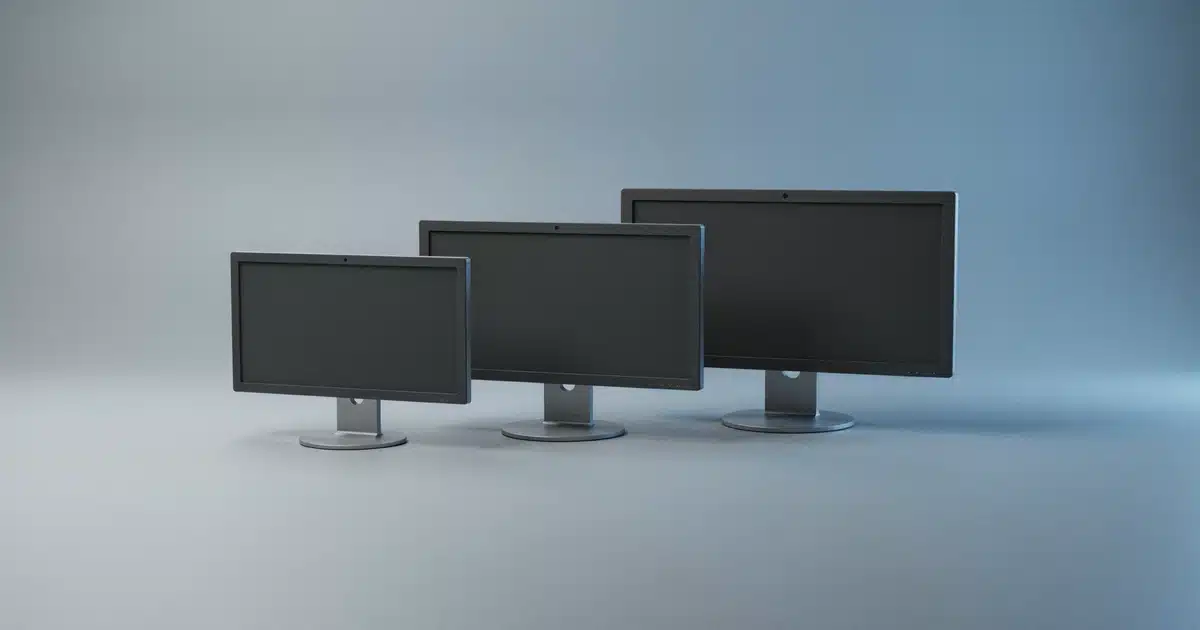
Based on standard 16:9 panel dimensions, moving from 24 to 27 inches adds roughly 27% more screen area, and moving from 27 to 32 inches adds another 39–41% more screen area on top of that, even at the same resolution.
That last point is worth repeating: a 27 inch 1440p monitor and a 32 inch 1440p monitor can have the exact same number of pixels — the 32 inch version just spreads them over a noticeably larger surface, which is part of why it needs a resolution bump to stay sharp.
24″
Baseline area
27″
~27% larger
32″
~41% larger than 27″
Relative screen area of 24, 27, and 32 inch monitors, based on standard 16:9 panel dimensions. Not to exact pixel scale.
Desk Depth & Viewing Distance Requirements
Most standard desks measure 24 to 30 inches deep. At that depth, 24 and 27 inch monitors sit at a comfortable viewing distance right out of the box. A 32 inch monitor generally needs at least 26 to 28 inches of desk depth to avoid sitting uncomfortably close.
It’s also worth measuring more than just width. Larger monitors often ship with deeper stands, which push the screen closer to you than the box dimensions suggest. If your desk is on the shallow side, a monitor arm can push a 32 inch screen back by an extra 6 to 8 inches compared to its stock stand — often enough to make a large monitor workable on a smaller desk.
24 Inch Monitors — Who They’re Still Right For
With resolution and desk space out of the way, let’s look at what each size actually delivers in daily use, starting with the smallest of the three. A 24 inch monitor is often overlooked as “too small” in 2026, but for the right buyer it’s still the smarter pick.
Best For: Competitive Gaming & Compact Desks
A 24 inch screen keeps your entire display within your natural field of view without moving your eyes or head. In fast-paced games where an opponent can appear anywhere on screen, that tighter field of view is a genuine advantage — it’s a big reason 24 to 25 inch panels remain the standard size among competitive and esports players, even years after larger monitors became affordable.
It’s also the easiest size to fit anywhere. A 24 inch monitor works comfortably on desks as shallow as 18 to 20 inches deep, and it’s the natural choice for dual-monitor setups where two screens need to fit side by side without overwhelming the desk.
Pros & Cons
- Pro — Tightest field of view: the whole screen stays in your natural eye line, which is why 24 to 25 inch panels remain the standard among competitive players
- Pro — Fits almost any desk: comfortable on desks as shallow as 18 to 20 inches deep, and the natural pick for dual-monitor setups
- Pro — Cheapest entry point: the lowest-cost tier of the three sizes, especially at 1080p
- Con — Less multitasking room — comfortably fitting two full windows side by side is tighter than on a 27 inch screen
- Con — 1080p is the practical floor — great for text at this size, but it’s still the entry-level resolution tier
- Con — Feels small after upgrading — buyers coming from a 27 or 32 inch screen often find 24 inches cramped for everyday browsing and spreadsheets
A 24 inch monitor isn’t a downgrade so much as a specialist’s choice — it’s built for speed and a tight desk footprint, not maximum screen real estate.
27 Inch Monitors — The Default Recommendation for Most Buyers
If 24 inches is the specialist’s choice, 27 inches is the generalist’s choice — and it’s why this size has become the most popular monitor category in 2026.
Best For: All-Round Gaming, Work, and Everyday Use
At 1440p, a 27 inch monitor delivers roughly 109 PPI — sharp enough for crisp text and detailed visuals without needing to mess with Windows or macOS display scaling. That resolution-size pairing is a big reason 1440p gaming monitors dominate the market: it’s the size where you get a noticeably bigger picture than 24 inches without sacrificing sharpness or requiring an expensive 4K panel.
For gaming specifically, 27 inches hits a genuine sweet spot between clarity and immersion — versatile enough to handle competitive titles reasonably well while still feeling substantial for single-player and story-driven games. For work, it provides enough screen area for two full browser windows, or a code editor next to a documentation panel, without the bezel gap and window-management hassle of running two separate monitors.
Pros & Cons
- Pro — Sharp without the 4K premium: 1440p at this size delivers roughly 109 PPI, crisp enough for text and detail with no display scaling headaches
- Pro — Genuine all-rounder: handles competitive titles reasonably well while still feeling substantial for single-player and story-driven games
- Pro — Real multitasking room: fits two full browser windows, or a code editor next to documentation, without running two separate monitors
- Con — Needs slightly more desk depth — generally at least 22 inches, more than a 24 inch screen requires
- Con — Costs more than 24 inch equivalents — especially once you factor in a quality 1440p panel
- Con — Not as immersive as 32 inches — if you specifically want a cinematic, wraparound feel for single-player gaming or movies, 27 inches will feel like a step down from 32
For most buyers who aren’t chasing a specific extreme — pure competitive gaming or maximum multitasking space — 27 inches is the size that’s hardest to get wrong.
32 Inch Monitors — When Bigger Genuinely Helps
Moving up from 27 inches isn’t a small step — a 32 inch monitor delivers roughly 39 to 41% more screen area than a 27 inch panel, even at the same resolution. For the right use case, that extra space is transformative rather than just “nice to have.”
Best For: Immersive Gaming, Multitasking, Creative Work
At 32 inches, a 4K resolution (about 137 PPI) delivers the sharpest, most detailed picture of the three sizes — genuinely razor-sharp text and fine detail once paired with the right resolution. That combination of large size and high pixel density is where 32 inch monitors earn their reputation for immersive, cinematic visuals, particularly in story-driven single-player games, simulation titles, and movies where visual impact matters more than split-second reaction time.
For work, a 32 inch monitor is essentially equivalent to running two 24 inch monitors on one seamless screen — enough room for three or more windows side by side, which makes it a strong fit for large spreadsheets, multi-panel coding setups, and timeline-based creative work.
Pros & Cons
- Pro — Most screen real estate: roughly 39 to 41% more screen area than a 27 inch panel, enough room for three or more windows side by side
- Pro — Sharpest picture of the three sizes: paired with 4K (about 137 PPI), text and fine detail are genuinely razor-sharp
- Pro — Best for immersive and creative work: the size and pixel density combination earns its reputation for cinematic single-player gaming and timeline-based video editing
- Con — Requires a deep desk — generally at least 26 to 28 inches, or a monitor arm to compensate
- Con — 4K is close to mandatory — 1440p at 32 inches (about 92 PPI) looks noticeably softer for text than the same resolution at 27 inches
- Con — Not the default for competitive gaming — the larger field of view can actually work against you in fast-paced shooters, since you can’t take in the full screen at a glance the way you can at 24 or 27 inches
- Con — Highest cost of the three sizes — especially for a quality 4K panel with a fast refresh rate
A 32 inch monitor rewards a specific kind of buyer: someone with the desk space, the budget for 4K, and a use case — immersive gaming, heavy multitasking, or creative work — that actually benefits from the extra area.
Gaming: Which Size Actually Performs Better?
Now that we’ve covered each size individually, it’s worth zooming in on gaming specifically — because the “best” size genuinely depends on what you play, not just personal preference.
Competitive/Esports Play
For competitive shooters, battle royales, and other fast-reaction genres, a smaller screen isn’t a compromise — it’s an advantage. According to display and gaming hardware guidance from multiple manufacturers, keeping the entire screen within your natural field of view reduces the eye and head movement needed to track fast-moving targets, which is why 24 to 25 inch panels remain the dominant size among serious competitive gaming monitors even in 2026.
27 inches can still work for competitive play if you already own one, but it’s a compromise, not the ideal. 32 inches is rarely the first choice here — the wider field of view that makes it great for immersive games works against you when split-second reaction time matters most.
Immersive & Single-Player Gaming
Flip the use case to open-world games, RPGs, racing, or flight simulation, and the calculus reverses. Here, a larger screen increases presence and visual impact, and 32 inch monitors — paired with 4K — deliver the most cinematic experience of the three sizes. 27 inches remains a strong, more affordable middle ground for players who want both competitive and immersive gaming from a single monitor.
Best for 24 Inch: The Competitive Player
You play ranked shooters or battle royales, care about reaction time more than visual immersion, and likely have a shallow desk.
Best for 27 Inch: The Hybrid Gamer
You play a mix of competitive and story-driven games and don’t want to compromise heavily on either. This is the safest single-monitor pick for most gamers.
Best for 32 Inch: The Immersion Seeker
You mostly play single-player, open-world, or simulation games, sit farther from your screen, and have the desk depth to support it.
Work & Productivity: Which Size Gets More Done?
Gaming isn’t the only place screen size matters — for anyone working at a desk all day, the right size can genuinely change how efficiently you work, not just how the screen looks.
Coding, Writing, and Spreadsheets
Published research on display size and productivity has found measurable gains from moving to a larger screen, though those gains plateau past a certain point and can be offset by eye strain, neck movement, and desk-space drawbacks at extreme sizes. In practical terms: a 24 inch monitor is the minimum most people should consider for comfortable all-day work, a 27 inch monitor comfortably fits two full windows side by side, and a 32 inch monitor opens up room for three or more — useful for large spreadsheets, multi-panel code editors, and reference documents open alongside your main work.
For most knowledge workers, a single 27 inch monitor at 1440p is the consensus productivity pick — enough screen area for comfortable multitasking without the desk depth and cost demands of 32 inches.
Single Large Monitor vs. Dual Monitor Setup
This is a question most size-comparison guides skip, but it matters: should you buy one bigger monitor, or two smaller ones side by side?
A single large monitor — 27 or 32 inches — removes the bezel gap between two screens, which makes dragging windows and video across the display smoother and less distracting. It’s also simpler to manage, since there’s only one set of settings and one cable to run. Two 24 inch monitors, on the other hand, cost less combined than one premium 32 inch panel, and they let you dedicate an entire screen to one task — useful if you like keeping email or chat fully separate from your main work.
As a rule of thumb: if you mostly overlap and compare content between windows (writing, coding, research), a single 27 or 32 inch monitor tends to feel smoother. If you keep entirely separate tasks running side by side (communication tools on one screen, work on the other), dual 24 inch monitors can be the more budget-friendly, equally effective choice.
Creative Work: Video Editing, Design, and Color-Sensitive Tasks
For creative professionals, screen size is only part of the story — color accuracy and resolution matter just as much, sometimes more, than how big the panel is.
Why Color Accuracy Matters More Than Size Alone
Most productivity-focused monitors are rated around 99% sRGB coverage, which is the practical floor for accurate everyday color work. For video editing and color grading specifically, look for 95%+ DCI-P3 coverage — a noticeably higher bar that only certain panels at each size actually meet, so it’s worth checking a monitor’s color specs directly rather than assuming a bigger or pricier screen automatically covers it.
Size still plays a real role here. A 27 inch 4K monitor is a strong, desk-friendly choice for photo editing and general design work. A 32 inch 4K monitor adds meaningful room for timeline-based video editing, where seeing more of your clips and effects panels at once genuinely speeds up the workflow. IPS panels are generally the safer choice for color-sensitive work compared to fast-refresh gaming-oriented panels, which are often tuned for motion clarity over color precision — see our full panel-type comparison guide for how each technology handles color and contrast.
If budget allows, an ultrawide monitor is also worth a look for video editing and timeline-heavy work — but that’s a different shape and use-case trade-off from the direct 24-27-32 inch comparison this guide focuses on.
Price Tiers by Size — What You Actually Get at Each Budget
Screen size and resolution explain performance, but budget is usually what decides the final purchase. Here’s a general breakdown of what changes at each price tier for 24, 27, and 32 inch monitors, based on typical 2026 retail pricing across major brands.
| Size | Budget Tier | Mid-Range Tier | Premium Tier |
|---|---|---|---|
| 24 inch | $100–$150 1080p, 75–100Hz, TN/VA panel |
$150–$250 1080p/1440p, 144–180Hz, IPS panel |
$250–$350 1440p, 240Hz+, fast IPS for esports |
| 27 inch | $150–$220 1080p or entry 1440p, 75–100Hz |
$220–$400 1440p, 144–165Hz, IPS panel |
$400–$700+ 1440p/4K, 165–240Hz, OLED or premium IPS |
| 32 inch | $250–$350 1440p, 75–100Hz (text will look soft) |
$350–$600 4K, 60–120Hz, IPS panel |
$600–$1,000+ 4K, 144Hz+, OLED or Mini-LED HDR panels |
The biggest price jump isn’t between sizes — it’s between resolutions. A budget 32 inch monitor at 1440p can cost less than a mid-range 27 inch 1440p model, but you’re trading away the sharp text that makes 27 inches at that resolution worth buying. If you’re on a tight budget, it’s usually smarter to buy a smaller size at the “right” resolution than a larger size at the wrong one.
At the premium end, the gap narrows: a high-end 27 inch OLED and a high-end 32 inch 4K monitor can land in a similar price range, so the size decision at that tier comes down almost entirely to desk space and use case rather than cost.
Eye Strain and Ergonomics at Each Size
Screen size affects more than performance and price — it also affects how your eyes, neck, and posture hold up over a long day at the desk.
Viewing Distance and Neck Position
Sitting too close to a large monitor forces your eyes to work harder to track content across the full width of the screen, and it can encourage more head and neck movement throughout the day. A 24 inch monitor is the most forgiving size for close viewing distances, since your eyes barely need to move to take in the whole screen. A 32 inch monitor needs real distance — roughly 2.5 to 3 feet — to avoid that same strain, which is exactly why desk depth matters so much in this decision.
A quick way to check: if you have to turn your head, not just your eyes, to see the corners of your screen from your normal seated position, the monitor is too close for its size — regardless of whether that’s a 27 inch or 32 inch panel.
When a Monitor Arm Solves the Desk-Depth Problem
If you love the idea of a 32 inch screen but your desk falls short on depth, a monitor arm — provided your display supports the standard VESA mounting pattern — is often the fix rather than settling for a smaller size. A good monitor arm can push the screen 6 to 8 inches farther back than its stock stand, and it also lets you fine-tune height and tilt — both of which help reduce neck strain regardless of screen size. It’s a relatively small add-on cost that can meaningfully change whether a larger monitor is comfortable for your specific desk.
Who Should Buy Which Size — Quick Decision Guide
With every angle covered — resolution, desk space, gaming, work, budget, and ergonomics — here’s how it all comes together into a straightforward decision.
Skip 32 inch monitors if your desk is under 24 inches deep, if you play mostly competitive shooters, or if you’re not ready to pair it with 4K resolution — a 32 inch monitor at a lower resolution undercuts most of the reason to buy one in the first place.
Frequently Asked Questions
What size monitor is best for gaming?
Is 27 inch or 32 inch better for a home office?
How far should I sit from a 32 inch monitor?
Is 24 inch too small for productivity work?
What resolution should I pair with a 27 inch vs. 32 inch monitor?
Should I buy one large monitor or two smaller ones?
Is a 32 inch monitor good for competitive gaming?
Does monitor size affect eye strain?
Can a monitor arm fix a desk that’s too shallow for a 32 inch monitor?
Expert Verdict
There’s no single “best” monitor size in 2026 — only the size that’s best for your desk, your budget, and what you actually do on your computer. If you had to pick one size for most people, 27 inches at 1440p is the hardest choice to get wrong: sharp text, comfortable multitasking, and a footprint that fits nearly any desk.
But that’s not universal. Competitive gamers and small-desk owners are genuinely better served by 24 inches, and anyone doing immersive gaming, heavy multitasking, or timeline-based creative work will get real, tangible value from 32 inches at 4K — provided the desk depth is there to support it. Match the size to your use case first, then let budget narrow down the specific model.

Shamim Sarker is the Founder and Lead Tech Reviewer at ShamimTechReview.com. With over 8 years of hands-on experience in consumer electronics, he specializes in unbiased reviews of smartphones, laptops, cameras, AI tools, and smart gadgets.
Shamim personally tests every product through rigorous real-world usage and data-driven benchmarks, maintaining complete transparency with no paid promotions. His mission is to help readers cut through marketing hype and make confident, informed buying decisions.